
Over the years, I’ve tested a bunch of software tools to streamline my processes and produce better quality content. Some didn’t stick, but others became essential tools that I use almost daily.
In this article, I’ll walk you through the 19 best tools I use to research faster, stay organized, and manage my freelance writing business. Free and paid.
For each tool, I’ll cover what it does, its key features, how I personally use it, and what the pricing looks like today. That way, you’ll see exactly how these tools can fit into your own workflow.
TL;DR
Don’t have time to read the whole article?
Here’s a video with a quick overview of all 19 tools, recorded by yours truly.
And to learn about a specific tool, just hit the link below and jump into a relevant section:
1. ChatGPT
2. Gemini
3. Consensus
4. Semantic Scholar
5. NotebookLM
6. NeuronWriter
7. Ahrefs
8. Grammarly
9. NapkinAI
10. Canva
11. Vecteezy
12. Trello
13. Clockify
14. Notion
15. Hubspot
16. Buffer
17. Sembley AI
18. Calendly
19. QuickFile
Best Research & Writing Tools for Freelance Content Writers
Let’s start with nine tools to help you research, synthesize the results, and turn them into SEO-friendly drafts that require minimal revisions.
1. ChatGPT
ChatGPT is a conversational AI by OpenAI that generates human-like text responses. Just plug in your question, and it will come up with the goods. Not happy with the quality? Follow up with more prompts to refine the output iteratively.
Top ChatGPT features:
- Natural language generation: Brainstorm, outline, and draft articles, social posts, emails, and more.
- Projects and custom GPTs: You can tailor the output for individual tasks, projects, or clients with custom instructions.
- Deep Research: It uncovers dozens of relevant sources, synthesizes the information, and creates reports.
How I use ChatGPT as a freelance writer and editor
- Brainstorming: Whenever I’m stuck on a problem, ChatGPT helps me generate multiple ideas and ways to solve it.
- Research: I use the Deep Research feature regularly to uncover sources that would be hard to find otherwise, allowing me to cover the topics comprehensively.
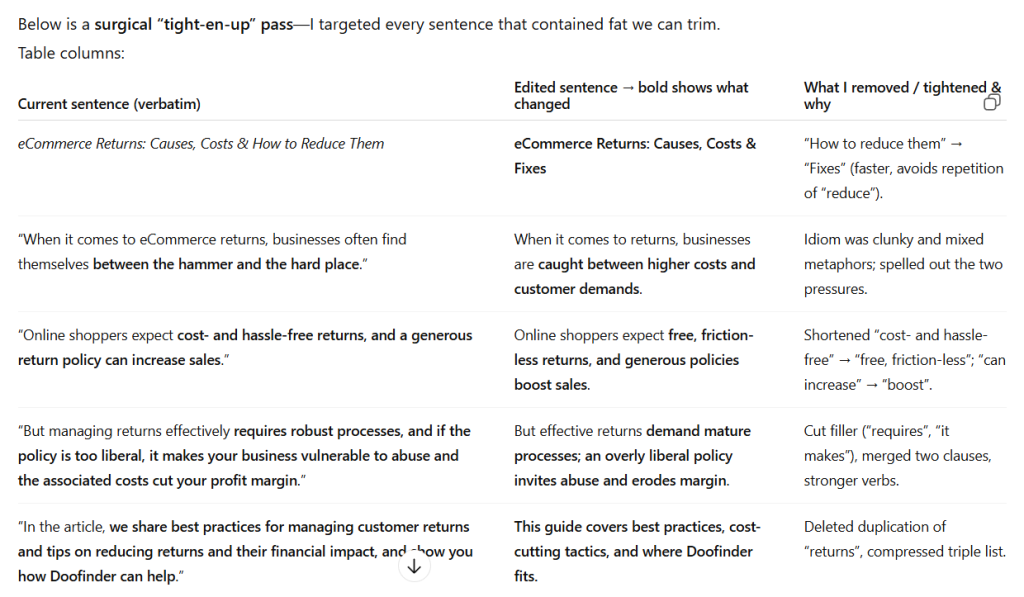
- Editing: I have created custom prompts for each stage of the editing process, so I’m less likely to miss issues. My drafts require fewer edits as a result.
- Repurposing: ChatGPT speeds up content repurposing for different channels. Still need to edit the social posts or video scripts manually, but don’t have to write them from scratch.
- Image analysis: It can transcribe and analyze the image content, speeding up data analysis.
- Data analysis: It’s great at dissecting large datasets and identifying trends and patterns.
ChatGPT pricing
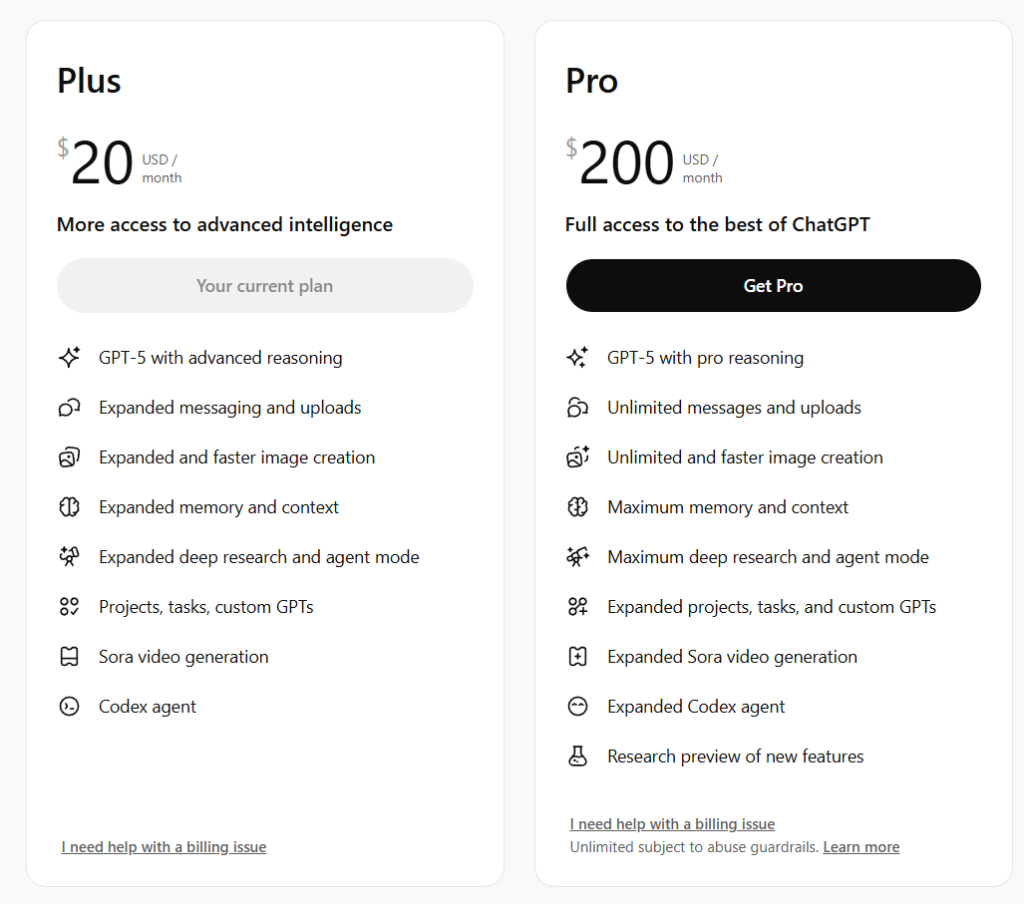
There are 3 plans:
- Free
- Plus – $20/month
- Pro – $200/month
I’m on the Plus plan, which gives me access to the latest model, ChatGPT-5, a larger memory and context windows, and a larger usage quota than the free plan.
I’d love to try the Pro plan, but the $200 a month is more than I spend on all my tools combined.
2. Google Gemini
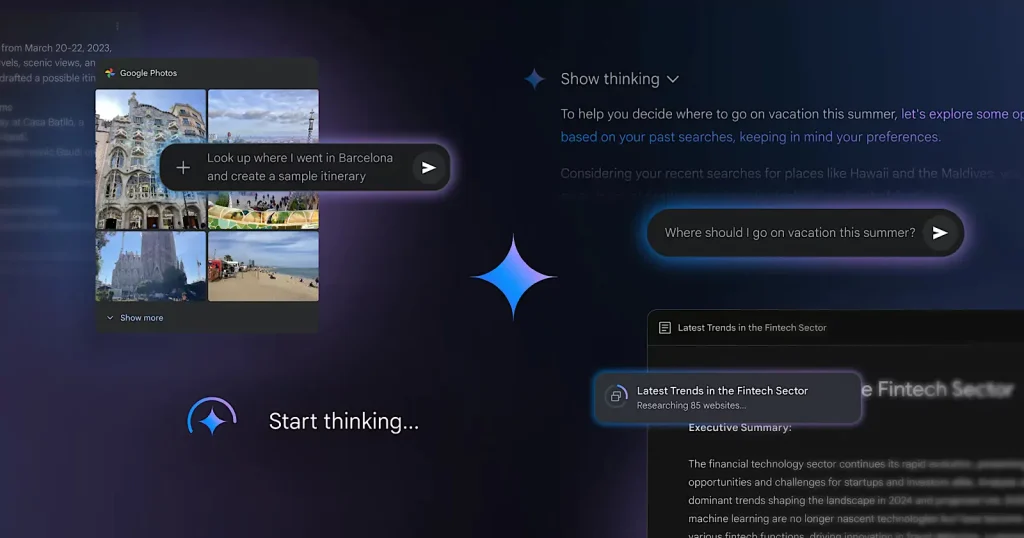
Gemini is Google’s advanced AI assistant — successor to Bard — that integrates across Google’s ecosystem. It’s built into Google products like Android (as the default assistant), Chrome, and Workspace apps to help users with everything from voice queries to document summaries.
Top Google Gemini Features:
- Multimodal input/output: Just like ChatGPT, it accepts text or voice queries and can generate text, images, and videos.
- “Gems”: You can create personalized chatbots for specific writing jobs or clients. For example, you can train it on a client’s brand voice or style guidelines.
- Deep reasoning & memory: The advanced “Gemini Ultra” model powers features like remembering context across sessions and complex problem-solving. This helps with long-term projects where the AI can recall past conversations and research.
How I use Google Gemini as a freelance writer and editor
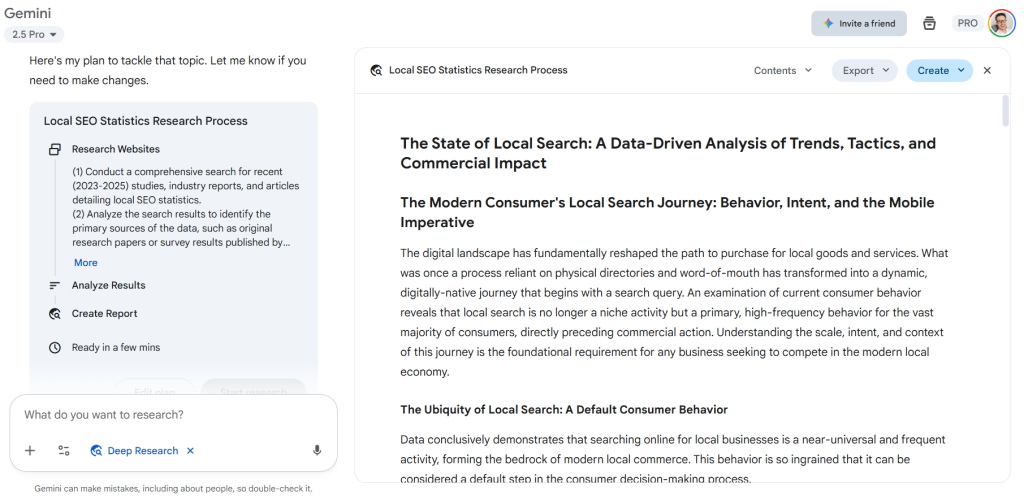
I use Gemini mostly for Deep Research as I believe it’s superior to ChatGPT. It also seems to have a larger context window than ChatGPT — at least the legacy models — which means its editing recommendations are more detailed.
And as an Android user, I use it for quick, on-the-fly, and admin tasks.
Google Gemini pricing
There are 3 Gemini tiers:
- Free – Basic access
- Google AI Pro – $19.99/month
- Google AI Ultra – $249/month
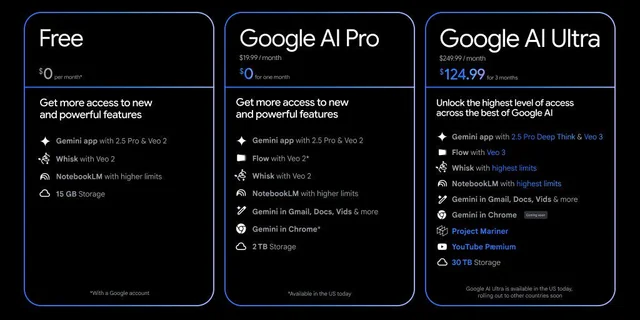
I’m on the lower-paid plan. It gives me access to the most powerful Gemini model (Flash 2.5 Pro) and features like longer memory and NotebookLM Plus.
3. Consensus
Consensus is an AI-powered search engine that finds answers in scientific research papers. It scans millions of scholarly articles to deliver evidence-based answers to questions.
For freelance writers, especially those in technical or health domains, Consensus acts as a research assistant that provides quick summaries of academic consensus on a topic.
Top Consensus features:
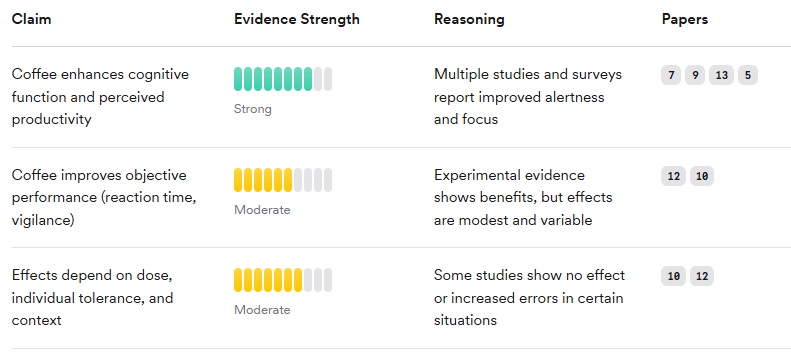
- Research question search: You input a question, and Consensus returns a summary of findings from relevant scientific papers, highlighting key results or points of agreement/disagreement.
- Paper summaries: It uses NLP to extract and summarize conclusions from papers, saving you the time of reading each in full. It also provides direct quotes and citations from the literature
- Quality indicators & filters: Consensus includes indicators like study type or sample size and allows filtering results by factors such as the rigor of studies or journals, so you can easily find only high-quality sources.
- Export & save lists: Users can bookmark papers and save search results, building a collection of references for later use
How I use Consensus as a freelance writer and editor
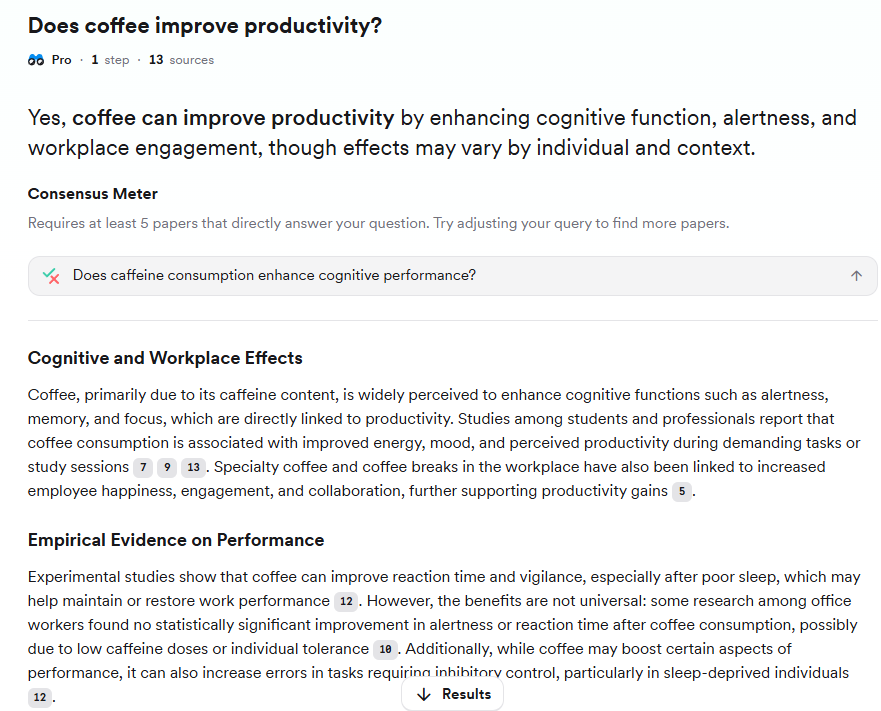
Consensus is an excellent alternative to Google Scholar. I use it to quickly verify answers to questions for my articles without manually sifting through papers. So my content is supported by credible research.
Consensus translates dense academic findings into plain English, making it easier to understand complex studies. And cite them accurately in layman-friendly language.
Consensus pricing
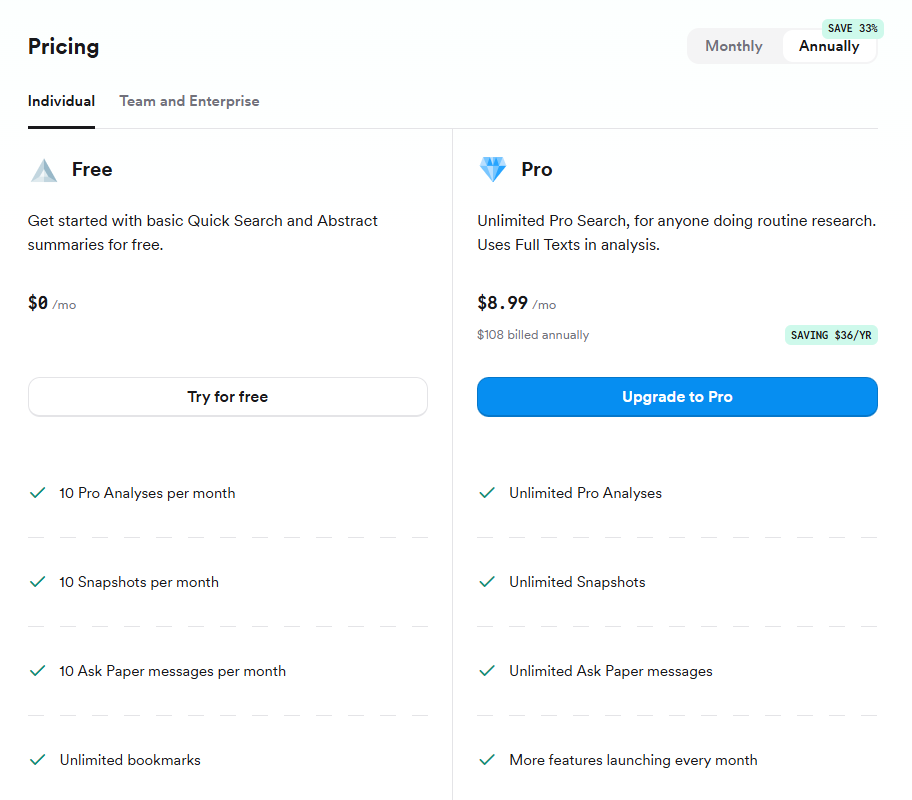
The free Consensus tier is enough for me, but it does offer only limited usage.
The $11.99/month (or $8.99/month billed annually) for the Premium (Pro) Plan is a bargain if you rely on academic sources for your research.
4. Semantic Scholar
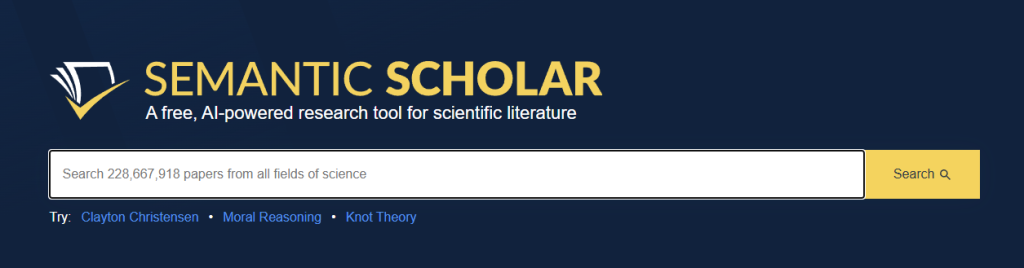
Semantic Scholar is an AI-powered academic search engine developed by the Allen Institute for AI. It indexes more than 200 million scholarly papers across all disciplines, and instead of simple keyword matching, it uses semantic search to return conceptually related studies.
Top Semantic Scholar features
- Semantic search: Understands the context of queries and surfaces relevant studies even without exact keyword matches.
- Paper summaries & key phrases: Many papers include AI-generated TL;DRs and highlight key concepts, citations, and phrases.
- Citation analysis: Shows citation counts and how other researchers reference the paper, helping gauge influence.
- Filters & recommendations: Narrow results by field, date, or publication type and explore suggested related papers.
- Author and venue details: Provides profiles of authors and their h-index, plus journal or conference credibility.
How I use Semantic Scholar as a freelance writer and editor
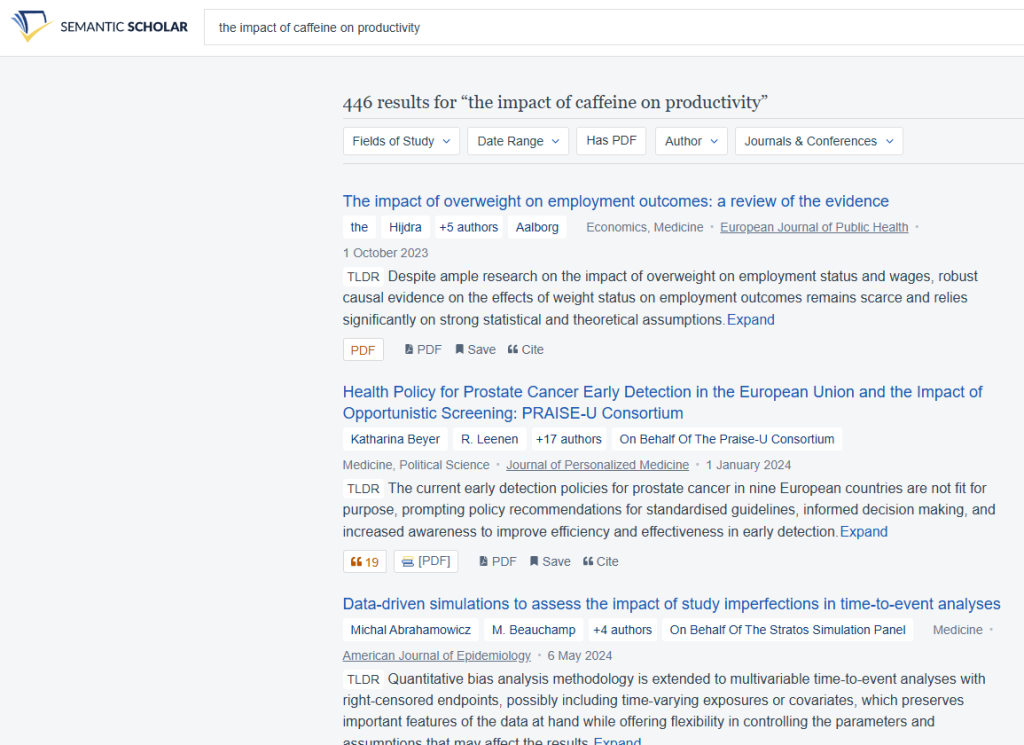
For me, Semantic Scholar — along with Consensus — is one of the fastest ways to uncover peer-reviewed evidence and background information without trawling through endless PDFs. If I need a credible source to support an argument, this is where I look first.
Its AI summaries mean I can get a paper’s main findings in seconds without digging into the abstracts, which — let’s face it — aren’t the easiest to digest.
Semantic Scholar pricing
It’s completely free. There’s no premium tier — everything is funded by the Allen Institute.
5. NotebookLM
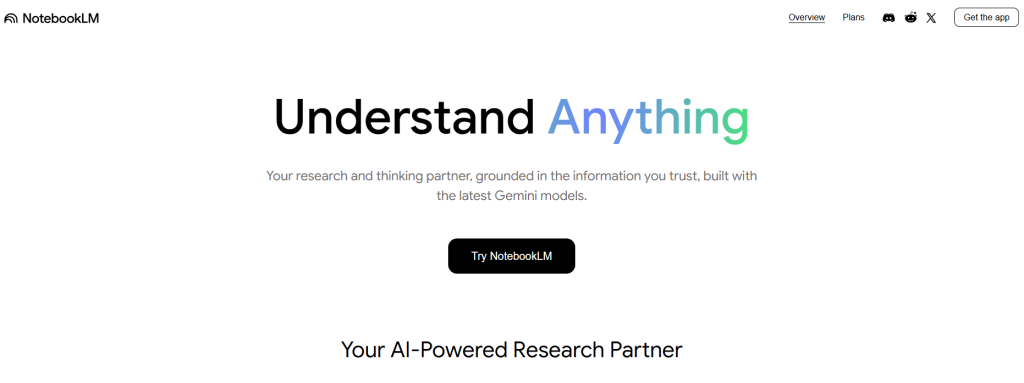
NotebookLM is Google’s AI-powered research and note‑taking assistant. It acts like an interactive notebook. It lets you upload your sources — like PDFs, transcripts, or websites — and then query them directly.
Top NotebookLM features
- Document Q&A: Ask natural language questions about uploaded files, and it answers with citations from the text.
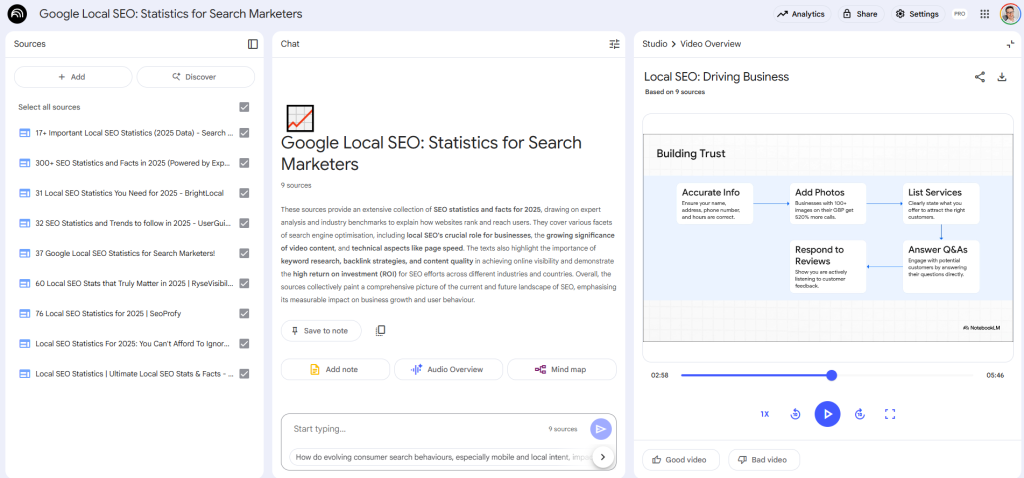
- Summaries & Audio Overviews: Produces concise summaries and podcast‑like spoken overviews for learning on the go.
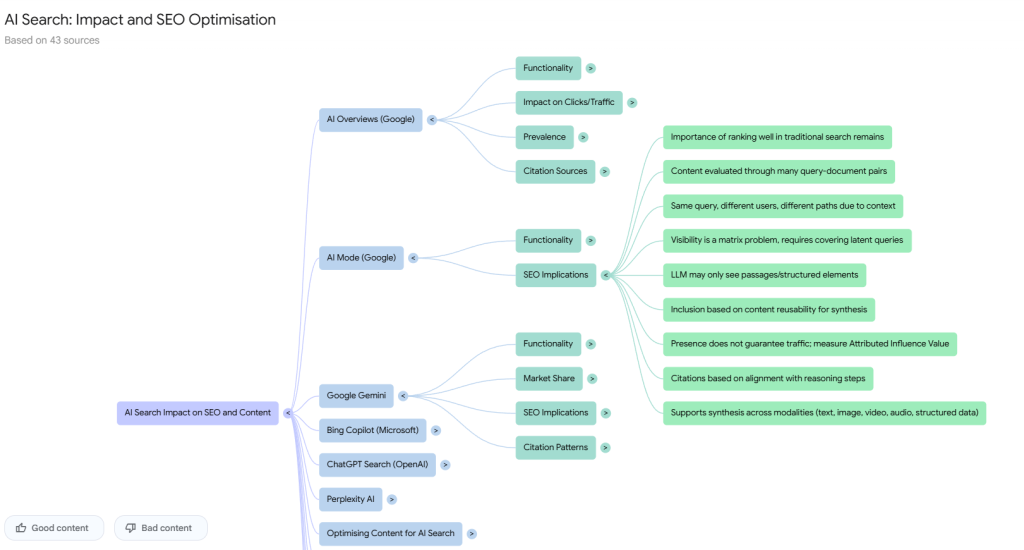
- Mind maps & Deep Dive: Visualize connections and run multi‑turn dialogues to explore topics in depth.
- Multi‑document analysis: Combine PDFs, Google Docs, websites, YouTube videos, or audio files into a notebook for synthesized answers across all sources.
- Audio & Video Overviews: It synthesizes the data from your sources and turns it into a podcast-style audio or a video presentation with key highlights.
How I use NotebookLM as a freelance writer and editor
NotebookLM is my favorite AI tool that saves me hours on research analysis. Here are a few ways I use it:
- Build knowledge bases: I have a knowledge base on every topic I write about regularly, like SEO or e-commerce, where I upload the most up-to-date resources I find, so I can quickly find relevant data.
- Collate case studies: I upload all clients’ case studies into dedicated notebooks to quickly find supporting data for product-led articles.
- Use Audio/Video Overviews to quickly get my head around a new topic I’m writing about. Just like I used to from podcasts, but now I choose the sources, so it’s much more relevant.
- Create mind maps to connect ideas
NotebookLM pricing
NotebookLM is available for free for personal use with a limited number of notebooks, sources, and daily queries.
I have access to NotebookLM Plus through my Google One AI Premium subscription (along with Gemini for $19.99/month). This offers higher caps.
6. NeuronWriter
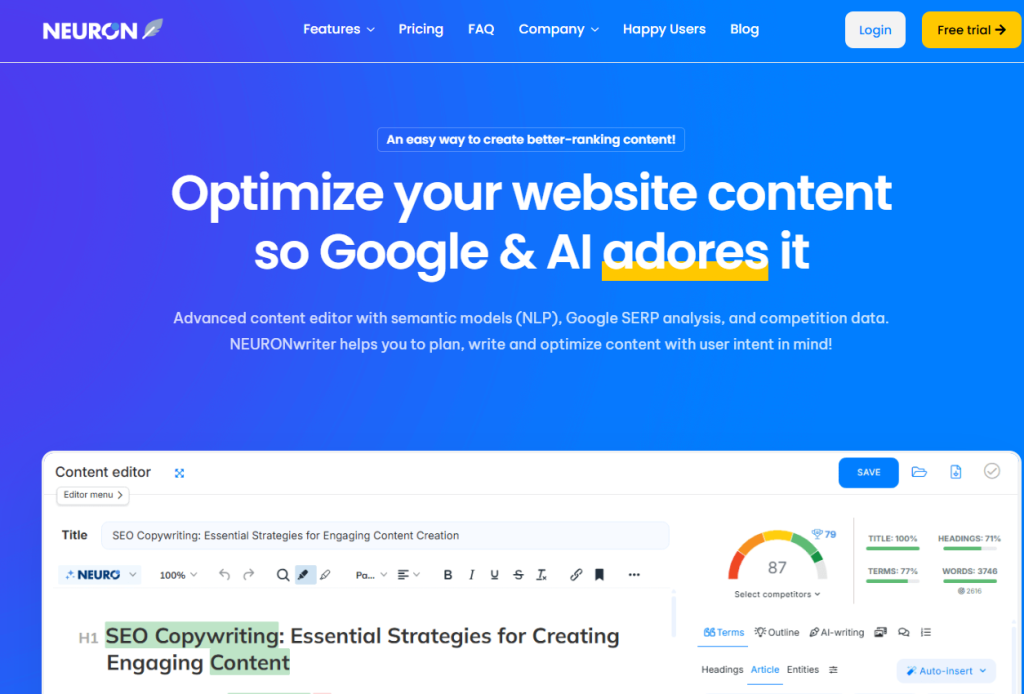
NeuronWriter is an AI-powered SEO optimization tool that helps create search‑friendly content.
It analyzes top‑ranking pages in Google, suggests semantic keywords, and scores your draft so you know how it compares to competitors.
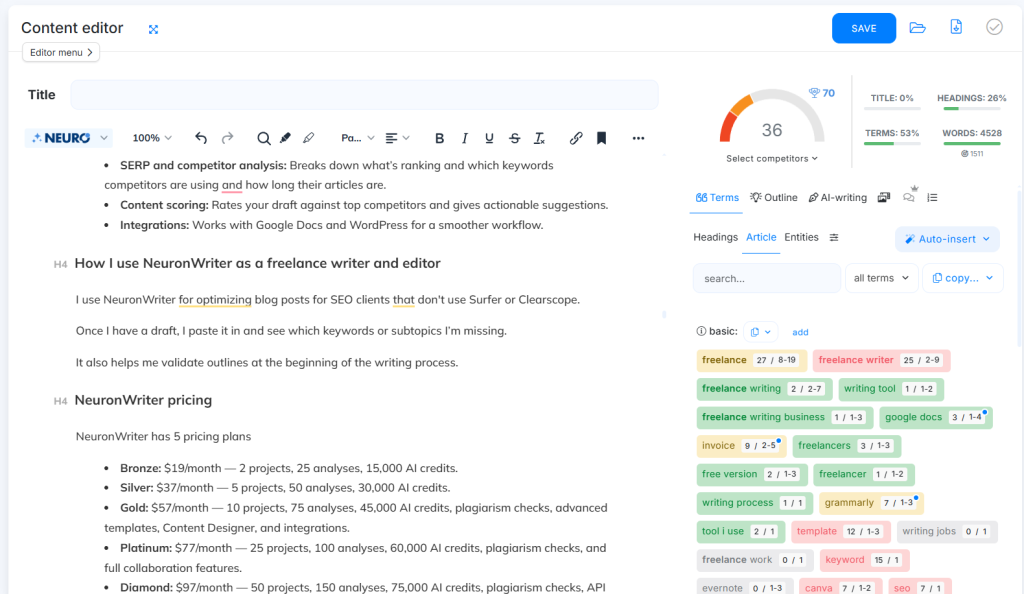
Top NeuronWriter features
- SERP and competitor analysis: Breaks down what’s ranking and which keywords competitors are using and how long their articles are.
- Content scoring: Rates your draft against top competitors and gives actionable suggestions.
- Integrations: Works with Google Docs and WordPress for a smoother workflow.
How I use NeuronWriter as a freelance writer and editor
I use NeuronWriter for optimizing blog posts for SEO clients that don’t use Surfer or Clearscope.
Once I have a draft, I paste it in and see which keywords or subtopics I’m missing.
It also helps me validate outlines at the beginning of the writing process.
NeuronWriter pricing
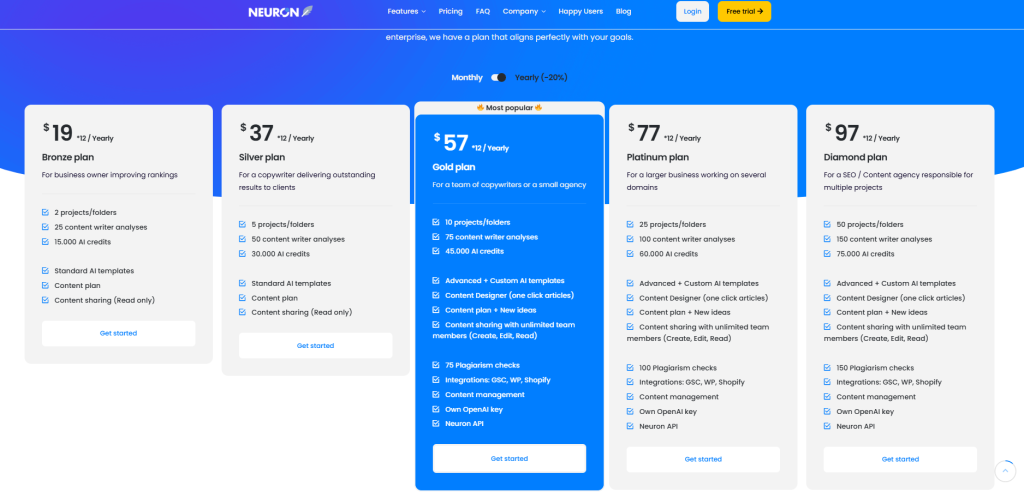
NeuronWriter has 5 pricing plans
- Bronze: $19/month — 2 projects, 25 analyses, 15,000 AI credits.
- Silver: $37/month — 5 projects, 50 analyses, 30,000 AI credits.
- Gold: $57/month — 10 projects, 75 analyses, 45,000 AI credits, plagiarism checks, advanced templates, Content Designer, and integrations.
- Platinum: $77/month — 25 projects, 100 analyses, 60,000 AI credits, plagiarism checks, and full collaboration features.
- Diamond: $97/month — 50 projects, 150 analyses, 75,000 AI credits, plagiarism checks, API access, and all advanced features.
Currently, the Bronze plan is all I need.
7. Ahrefs
Ahrefs is one of the most popular SEO tool suites, trusted by marketers, agencies, and content teams worldwide. It’s best known for its massive link index and accurate keyword data.

Top Ahrefs features
- Keywords Explorer: Discover keywords with search volume, difficulty, and traffic potential.
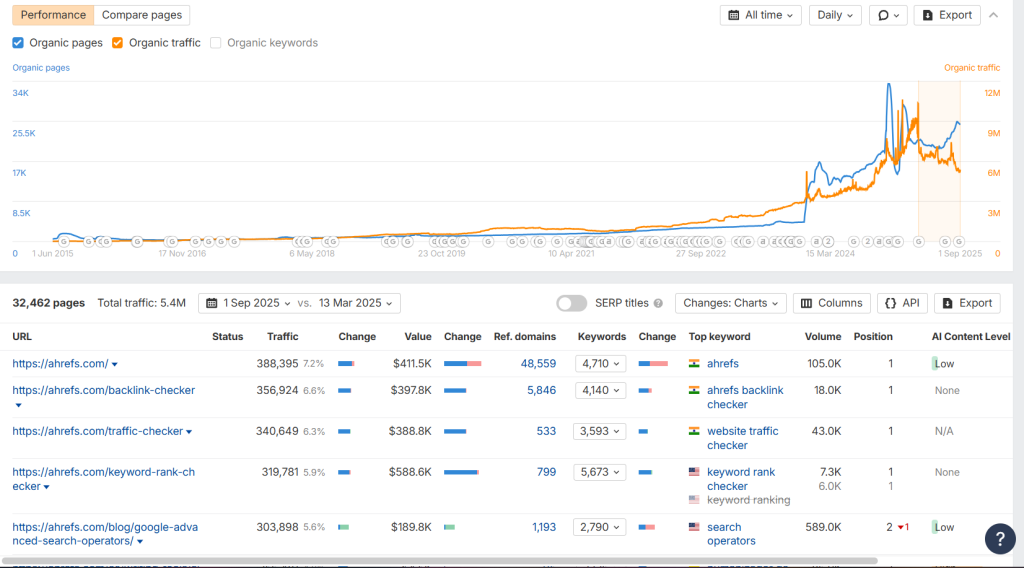
- Site Explorer: Analyze any website’s backlinks and organic keywords to see what drives their traffic.
- Content Gap & Content Explorer: Identify keywords you’re missing compared to competitors and find top-performing content in your niche.
- Rank Tracker: Monitor how articles rank over time for target keywords.
- Site Audit: Check for technical SEO issues that might impact visibility.
How I use Ahrefs as a freelance writer and editor
I use Ahrefs primarily for keyword research and competitor analysis. When I’m planning articles, I look for topics with strong search potential but manageable competition.
Site Explorer helps me understand why a competitor’s post ranks and what backlinks it earned. I’ve also used Content Gap to spot opportunities where my clients aren’t ranking yet.
And as I write a lot about SEO and link-building, I use Ahrefs screenshots to illustrate all the how-to guides.
Ahrefs pricing
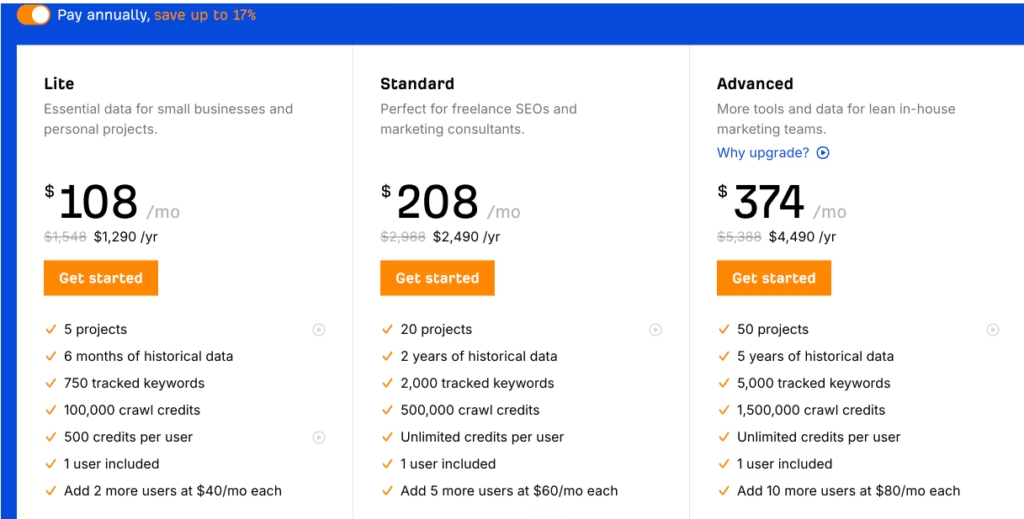
Ahrefs ain’t cheap. There are 4 plans:
- Lite: $108/month — core features, 5 projects, 750 tracked keywords.
- Standard: $208/month — 20 projects, 2,000 keywords, Content Explorer.
- Advanced: $374/month — 50 projects, 5,000 keywords, expanded history.
There’s also a Starter plan with limited features for beginners for $29/month and a free version —Ahrefs Webmaster Tools — with basic site audit and backlink data.
8. Grammarly
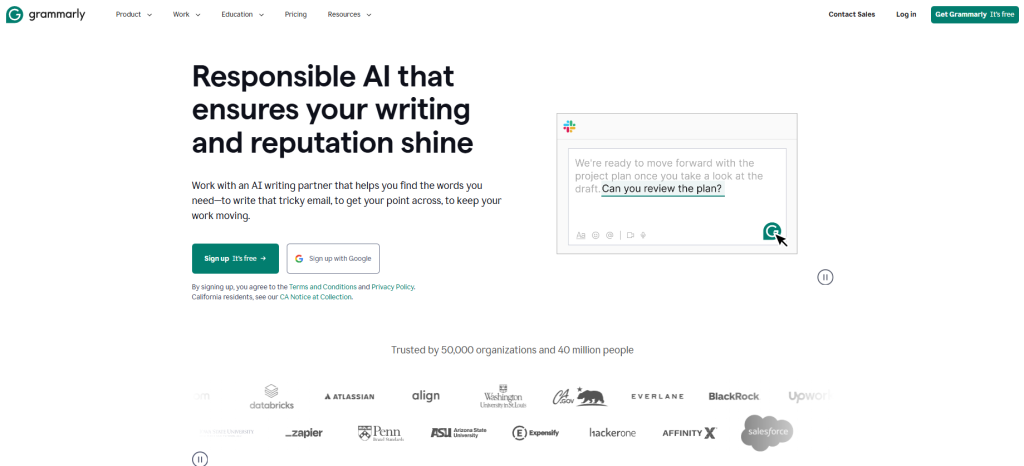
Grammarly is a widely used AI writing assistant that checks grammar, spelling, punctuation, and style.
It works across browsers, Google Docs, Microsoft Word, email, and more, so it’s always present where I’m writing.
Top Grammarly features
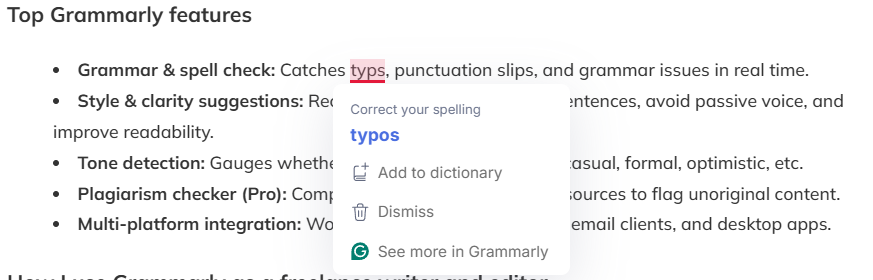
- Grammar & spell check: Catches typos, punctuation slips, and grammar issues in real time.
- Style & clarity suggestions: Recommends ways to tighten sentences, avoid passive voice, and improve content readability.
- Tone detection: Gauges whether my draft comes across as casual, formal, optimistic, etc.
- Plagiarism checker (Pro): Compares text against billions of sources to flag unoriginal content.
- Multi-platform integration: Works in browsers, Docs, Word, email clients, and desktop apps.
How I use Grammarly as a freelance writer and editor
I use Grammarly to proofread every draft before sending it to clients.
After hours of editing, it’s easy to miss small mistakes — Grammarly catches what my eyes gloss over.
It doesn’t replace my own editing, and I don’t always agree with its style recommendations, but it does reduce the number of errors I need to fix manually and allow me to focus on higher-level edits.
Grammarly pricing
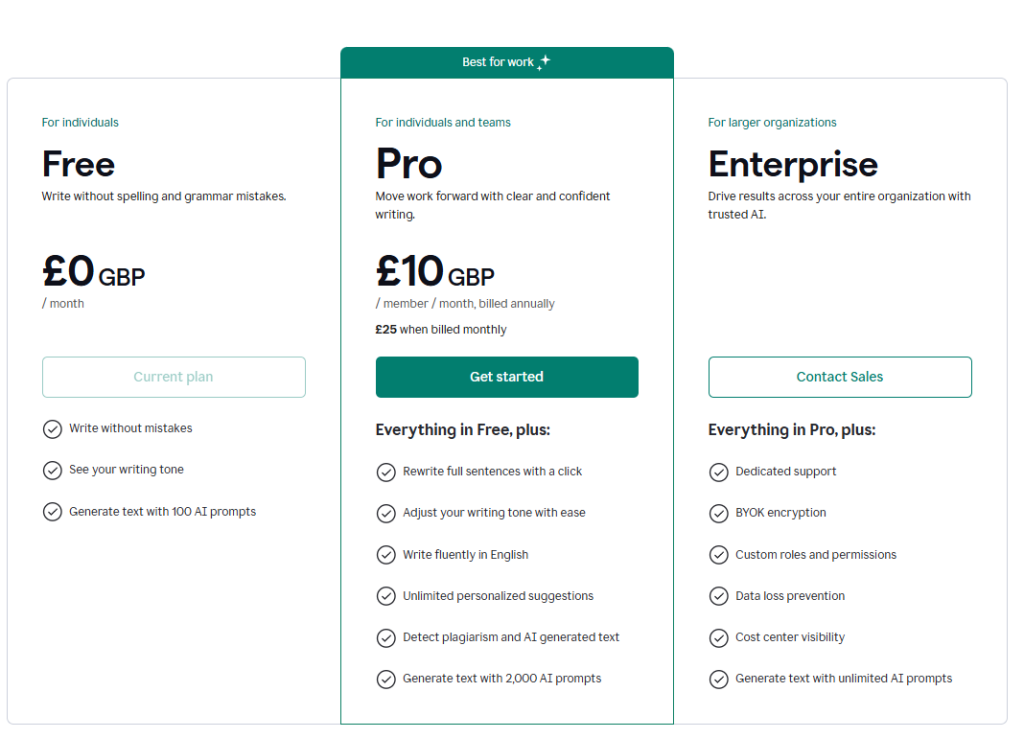
The free version corrects your grammar, spelling, and punctuation errors, and it’s more than enough for my needs.
I used to have the Pro version, at $12/month or $144/year, which unlocks the advanced feedback, full rewrites, and plagiarism checker, but I’ve decided not to extend it.
Best Graphic Design Tools For Writers
Although I am not responsible for images beyond screenshots, I still use a couple of graphic design tools to sketch an odd diagram or create them for my website and socials.
9. NapkinAI
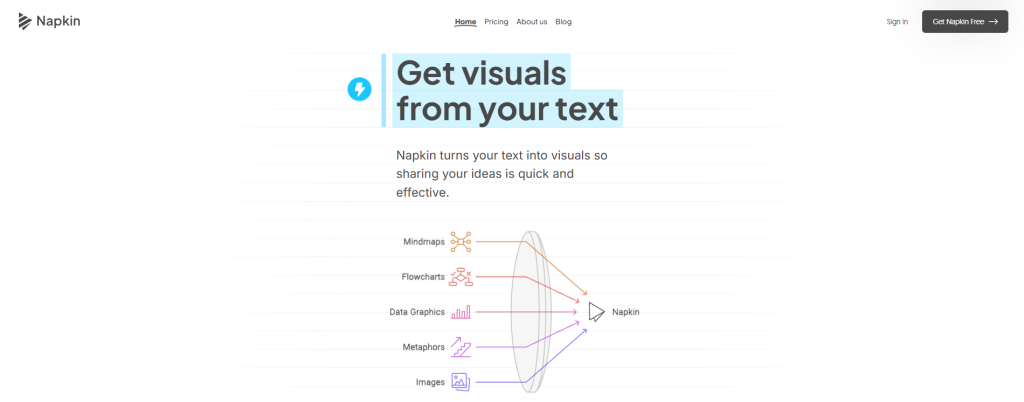
Napkin AI is a text-to-visual tool. You copy in your blog section or a social post, and it turns it into diagrams, flowcharts, and infographics.
Top Napkin features:
- Diagram creation: Convert plain text into flowcharts, mind maps, and infographics instantly.
- Customizable visuals: Adjust styles, fonts, and layouts to match brand or project needs.
- Export formats: Download visuals in PNG, PDF, or SVG for direct use or easy editing.
- Real-time collaboration: Share visuals with teammates or clients for feedback.
- Templates & styles: Built-in presets to speed up visual creation.
How I use Napkin as a freelance writer and editor
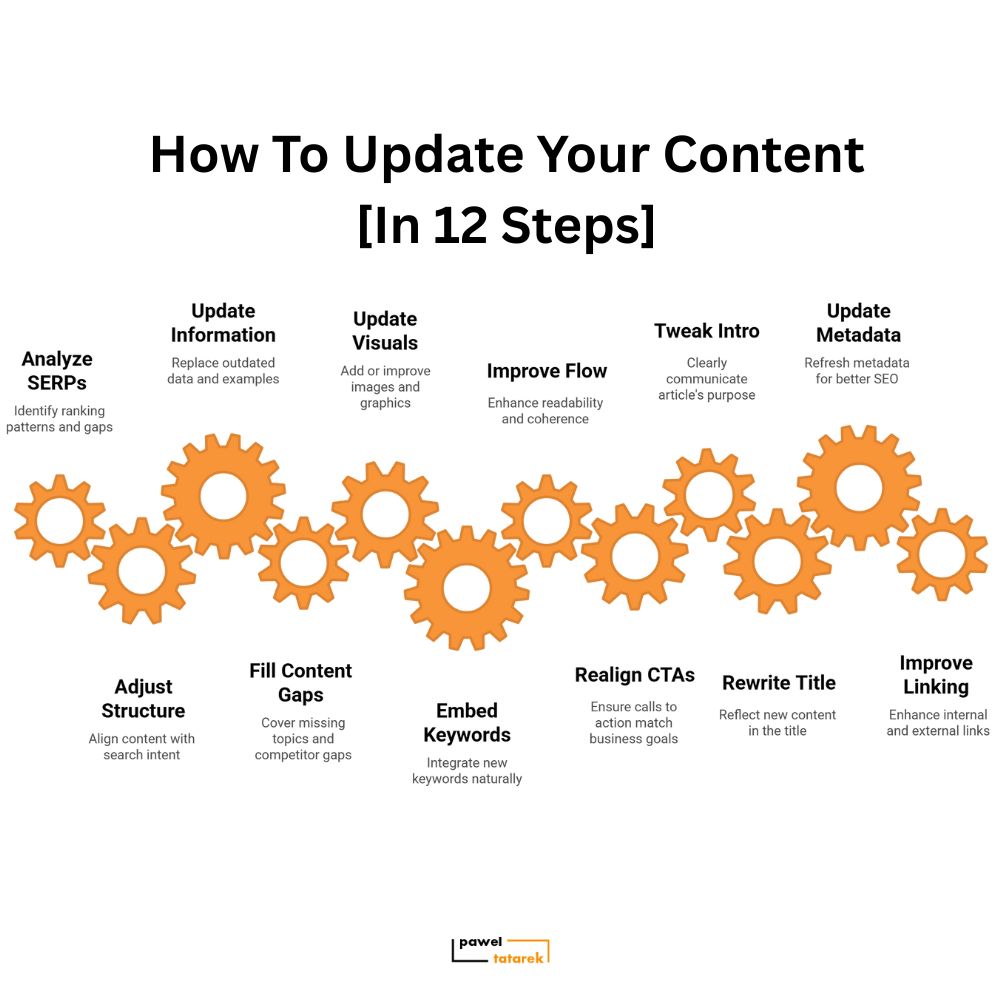
I use Napkin AI to create draft diagrams and charts for articles.
Sometimes publish-ready ones. Sometimes prototypes, which I can send to the graphic designers to clarify exactly what I want. This saves me — and my clients — from misunderstandings and expensive rework.
It also speeds up the briefing process — designers know what I mean right away.
Napkin AI pricing
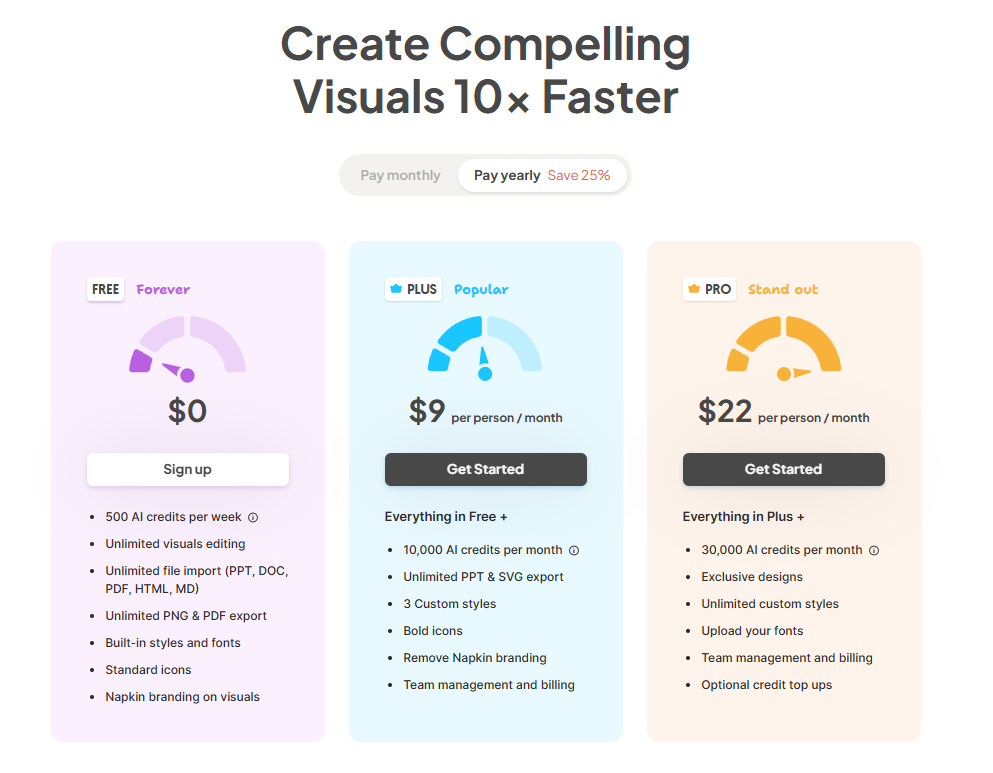
I use Napkin’s free plan, which comes with 500 AI credits per week.
There are also
- Plus: $9/month, with 10,000 AI credits and no watermark.
- Pro: $22/month, with 30,000 AI credits and unlimited styles.
10. Canva
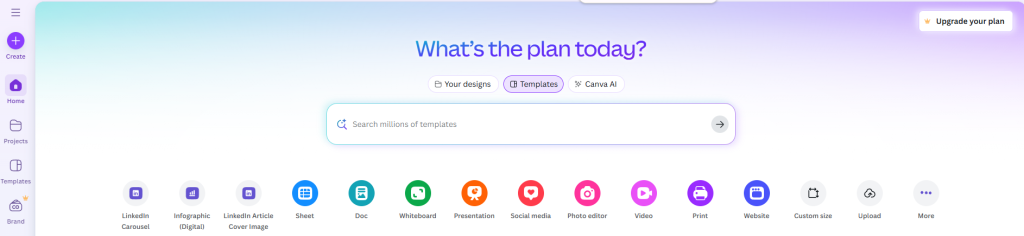
Canva is a graphic design platform that helps non-designers create professional visuals quickly. Its simple drag-and-drop interface, vast library of templates, and integrated stock media make it a go-to tool for freelance writers like me who need graphics on the fly.
Top Canva features
- Extensive template library: Over 600,000+ templates for social posts, infographics, eBooks, and more.
- Stock media integration: Access to 100M+ photos, videos, and audio tracks on Pro plans.
- Brand Kit: Save fonts, colors, and logos for consistent branding across projects.
- Collaboration tools: Share designs with clients or teammates and collect feedback directly in Canva.
- AI-powered tools: Magic Write generates text inside designs, and Magic Resize reformats graphics for multiple platforms instantly.
How I use Canva as a freelance writer and editor
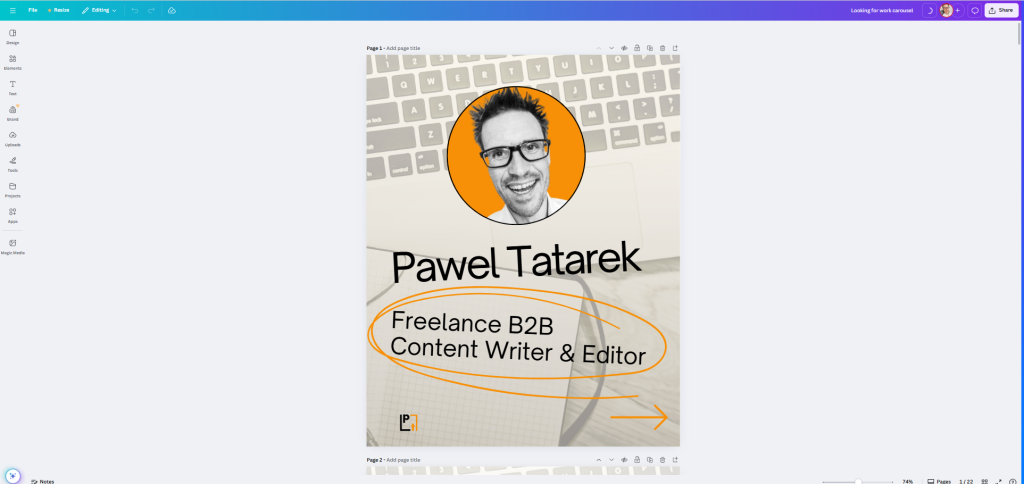
I use Canva to create blog graphics, social media posts, and quick illustrations, mostly for my projects.
I occasionally use it for client work, but whenever there’s a chance, I let professional designers do it.
Canva pricing
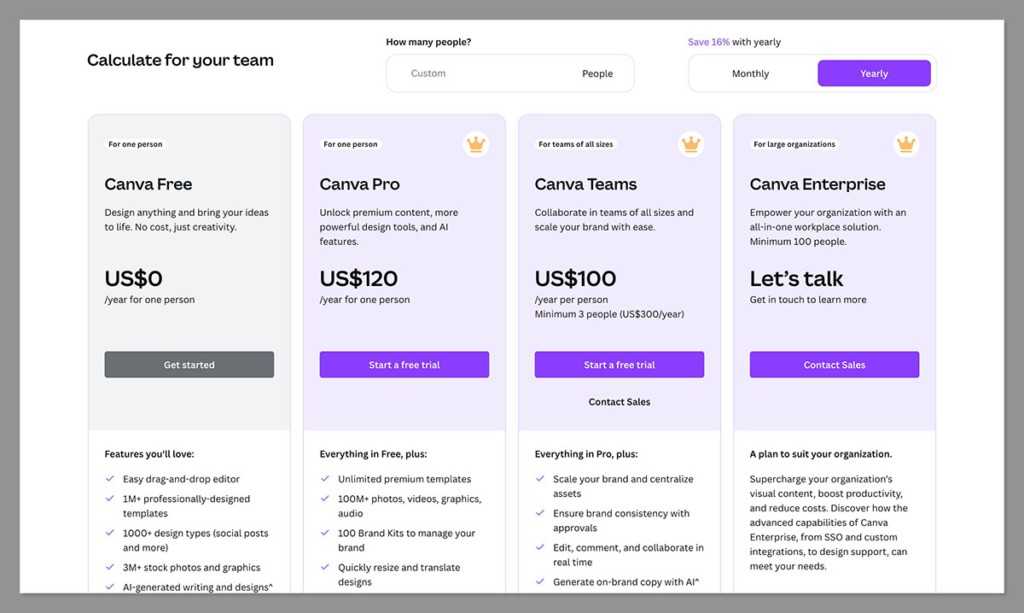
I’m on the free plan, which includes 250k+ templates and 5GB cloud storage.
I sometimes upgrade to the Pro plan to take advantage of its premium templates or features, like the background remover or document resizer. It costs $12.99/month or $120/year.
11. Vecteezy
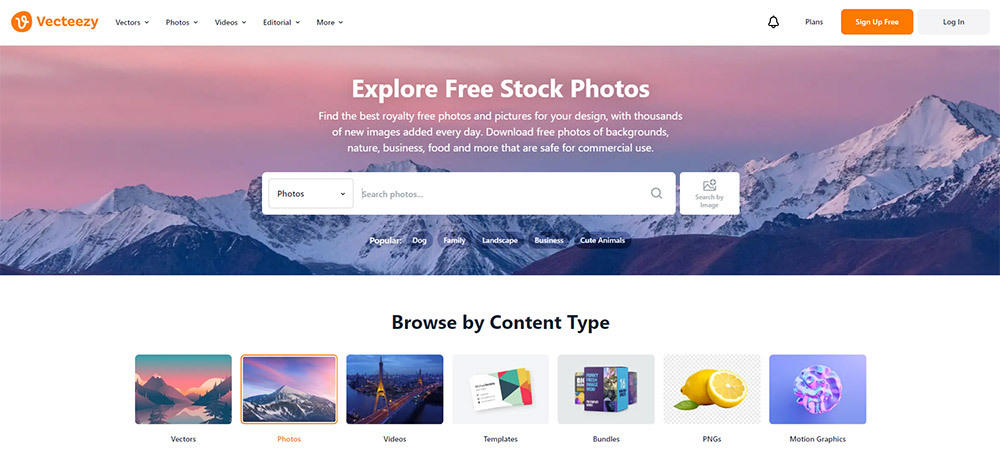
Vecteezy is one of the largest creative marketplaces offering free stock photos, videos, and vectors. What makes it stand out is its focus on user protection through contributor vetting and signed model releases, which is rare among free stock photo sites.
Top Vecteezy features
- Large free library: Millions of photos available for commercial use with attribution
- Model & property releases: Contributors must submit signed releases, reducing legal risk
- Multiple content types: Photos, videos, vectors, templates, and PSDs
- Advanced search filters: Filter by image style, number of people, age, composition, and more
- Downloadable licenses: Keep a copy of the license for your records, even for free downloads
How I use Vecteezy as a freelance writer and editor
When I need stock photos, Vecteezy is one of my go-to resources. The downloadable license feature is particularly useful for client projects where I need to prove I have permission to use an image.
I also use Vecteezy for vector graphics or icons for presentations and infographics, since that’s harder to find on other free platforms.
Vecteezy pricing
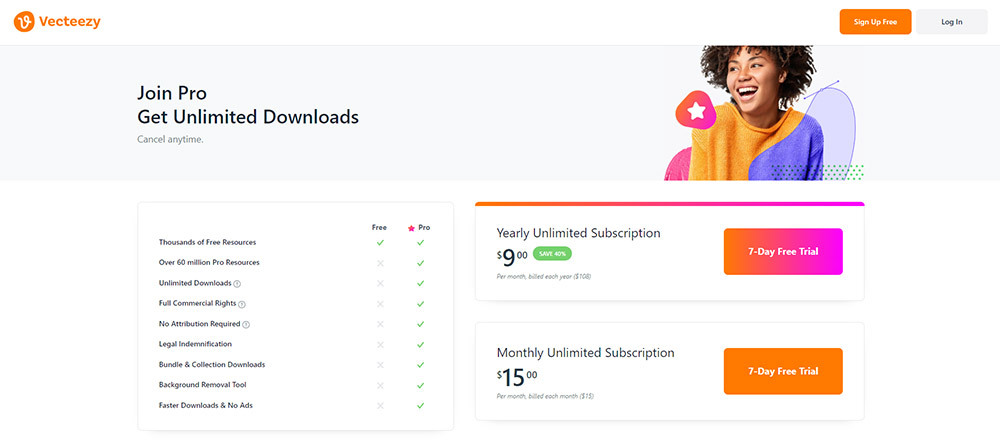
- Free: Attribution required, access to millions of free resources
- Pro: $15/month (or $9/month billed annually) — unlimited downloads, no attribution, ad-free experience, enhanced legal protection
I stick with the free plan since it meets my needs, but those who use a lot of resources may want to consider a Pro subscription.
Best Productivity and Business Management Tools for Freelance Writers
Although not writing software, I can’t imagine running my content writing business without these tools.
12. Trello
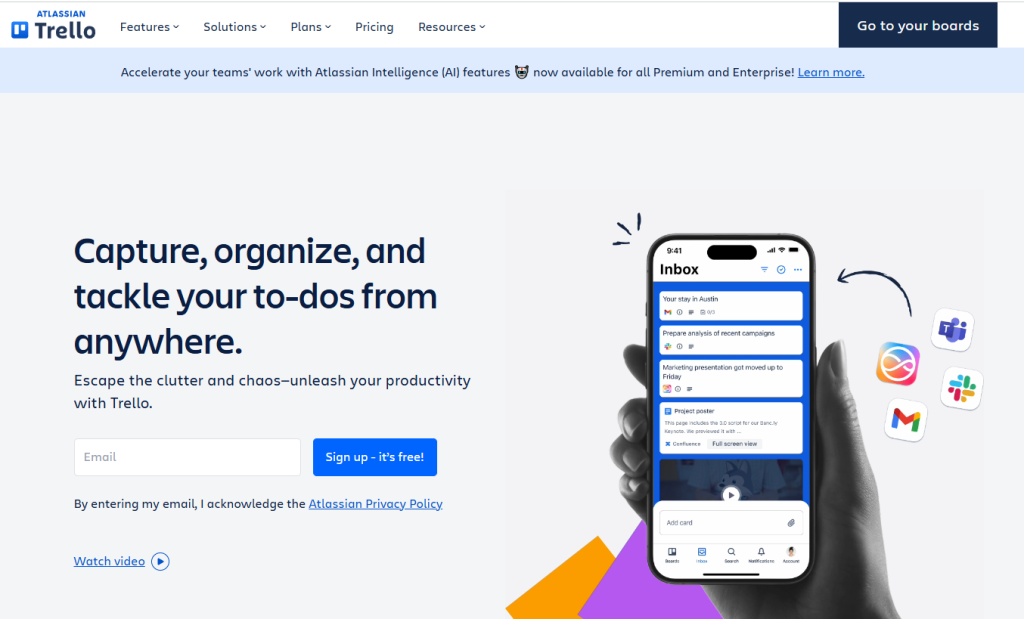
Trello is a project management tool based on Kanban boards.
It helps you organize tasks visually on cards and lists, which is much easier to follow than a plain to-do list. Its simplicity makes it ideal for freelancers who don’t want to get lost in complex project management features.
Top Trello features
- Boards, lists, and cards: Visual workflow for moving tasks from idea to done.
- Card details: Add due dates, checklists, attachments, and comments to each card.
- Mobile app: Capture ideas and update boards on the go.
- Power‑Ups: Extend functionality with calendar view, Google Drive integration, and more.
How I use Trello as a freelance writer and editor
I use Trello to keep track of article pipelines as well as all the other freelance tasks, like sending invoices, responding to emails, or following up on SME requests.
Trello pricing
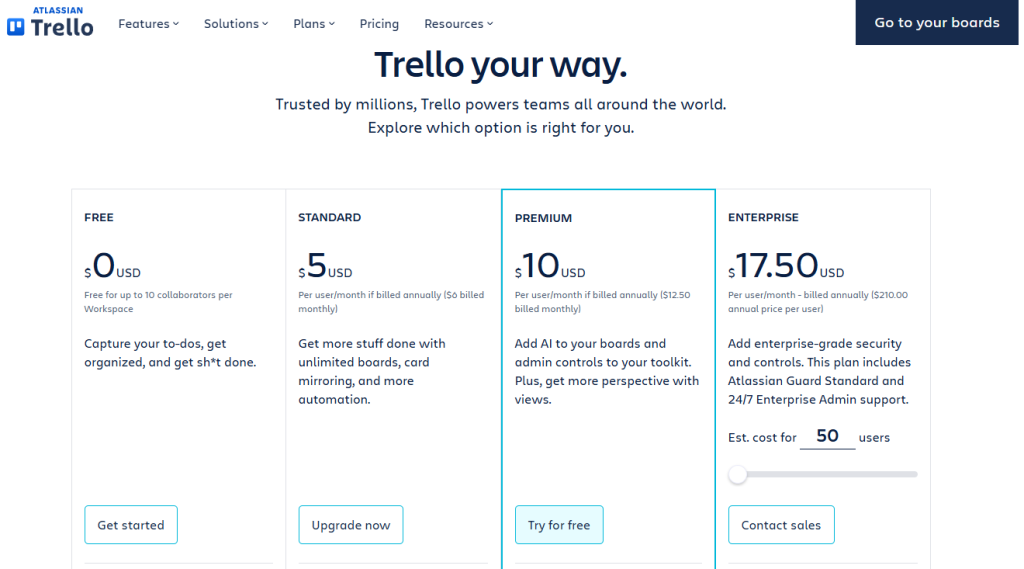
Trello offers 4 pricing tiers:
- Free: $0 — up to 10 boards, unlimited cards, 1 Power‑Up per board.
- Standard: $5/user/month — unlimited boards, custom fields, advanced checklists, 1,000 automations.
- Premium: $10/user/month — adds Calendar, Timeline, Dashboard views, and advanced automations.
- Enterprise: $17.50/user/month — unlimited workspaces, advanced security, and admin controls.
As you expect, I’m on the free plan.
13. Clockify
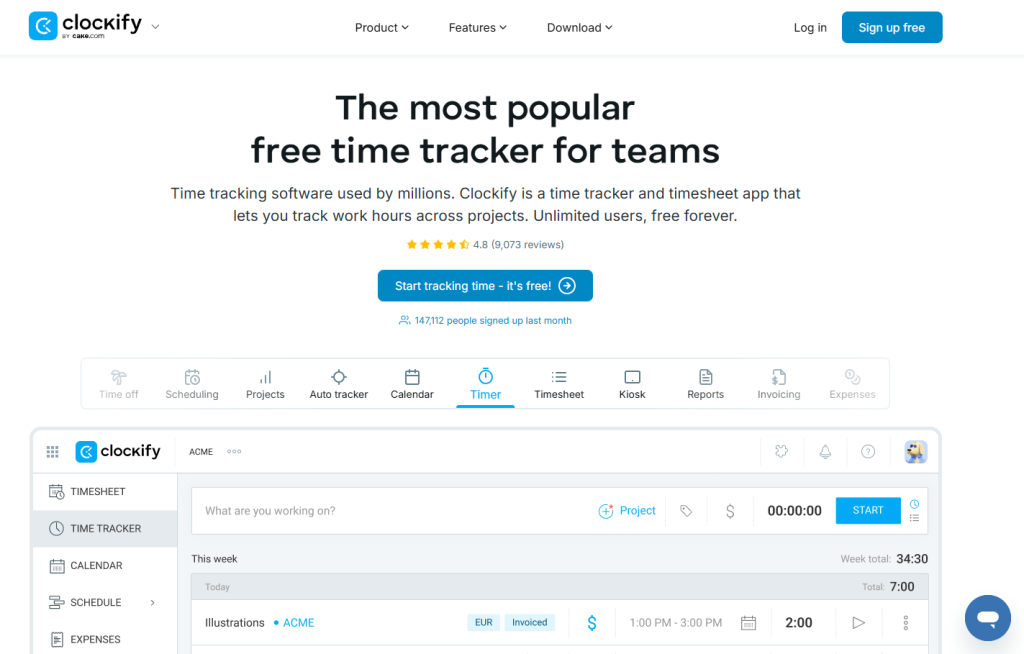
Clockify is a time-tracking and timesheet app popular among freelancers for logging billable hours and managing time across projects.
Its biggest draw is the simplicity of the one-click timer, which you can activate from whichever tool you’re using (thanks to the browser extension).
Top Clockify features
- Time tracker & timer: Start/stop timers for tasks or log hours manually, tagging them by project and client.
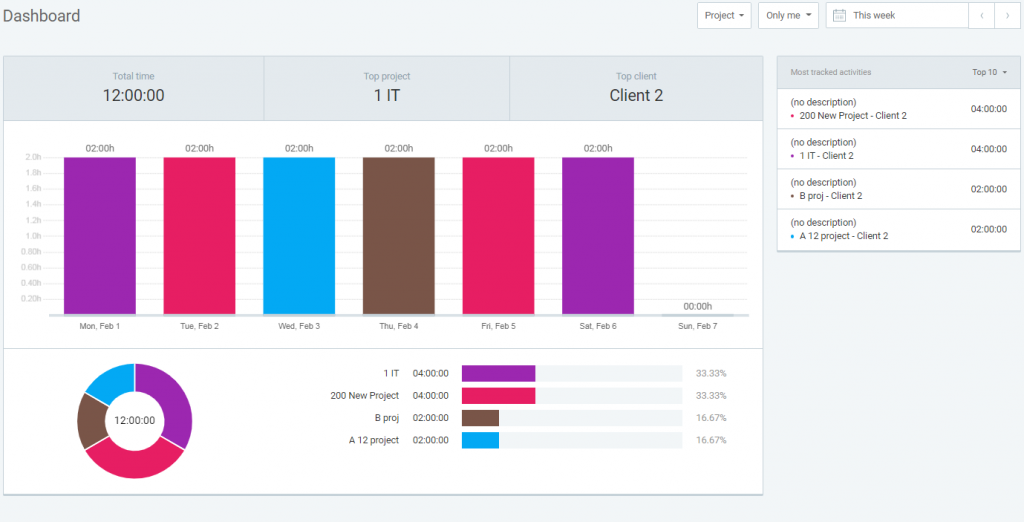
- Projects & reports: Organize tracked time under projects and generate detailed daily, weekly, or client reports.
- Timesheets: Enter hours manually in a spreadsheet-style view, with approval workflows for teams.
- Integrations & apps: Connect with Trello, Asana, and more, with desktop and mobile apps for on-the-go tracking.
- Extras (paid): Invoicing, expense tracking, time off management, and GPS tracking.
How I use Clockify as a freelance writer and editor
I use Clockify to track exactly how long I spend on client work. This helps me scope future projects with more confidence.
The reports have revealed where I tend to underestimate effort — for example, editing usually takes longer than I expect. Having that data lets me adjust quotes and avoid undercharging.
Clockify pricing
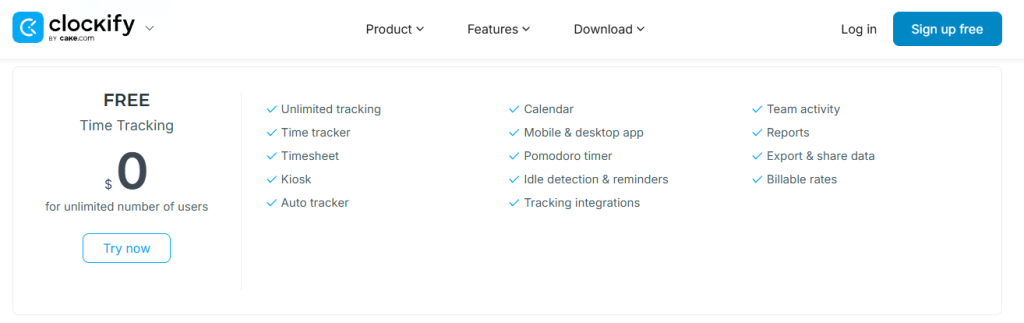
I use the free Clockify plan, which offers unlimited projects, users, and basic reports.
But there’s more:
- Basic: $3.99/user/month (annual) — branding removal, bulk editing, tasks.
- Standard: $5.49/user/month (annual) — invoicing, approvals, extra reports.
- Pro: $7.99/user/month (annual) — scheduling, expenses, customization.
- Enterprise: $11.99/user/month (annual) — advanced security and SSO.
14. Notion
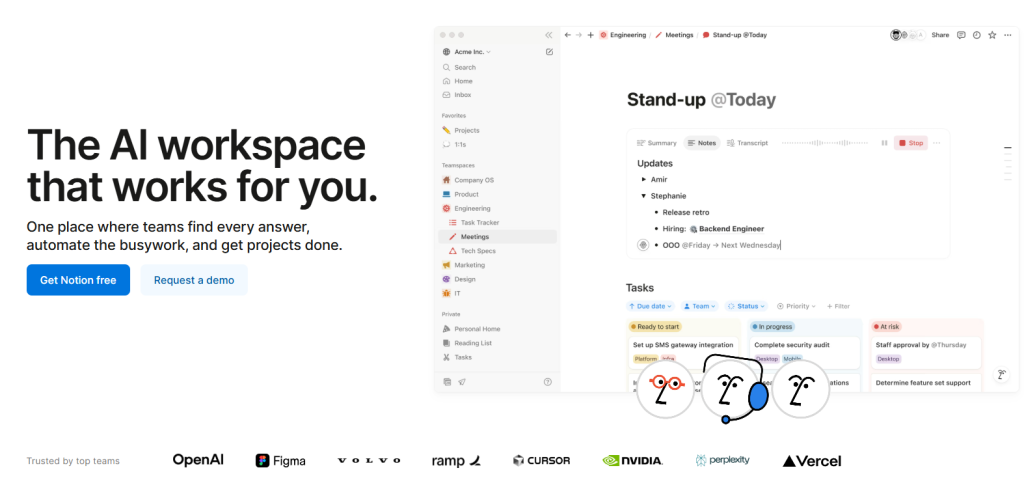
Notion is an all-in-one workspace app that combines notes, docs, project tracking, and databases. It’s flexible enough to serve as a task manager, content calendar, knowledge base, or draft editor.
Top Notion features
- Flexible pages & databases: Create pages that hold text, tables, kanban boards, calendars, and more.
- Templates & blocks: Use pre-built templates and drag-and-drop blocks to structure projects quickly.
- Wiki & knowledge base: Link pages together to build wikis or knowledge hubs.
- Collaboration: Share pages with clients or collaborators for comments and real-time updates.
- Web clipper & embeds: Save web pages or embed videos, maps, and designs directly in your workspace.
How I use Notion as a freelance writer and editor
I used to use Notion as my all-in-one command center from which I managed client projects and communications, SME contact details, sent invoices, and kept accounts.
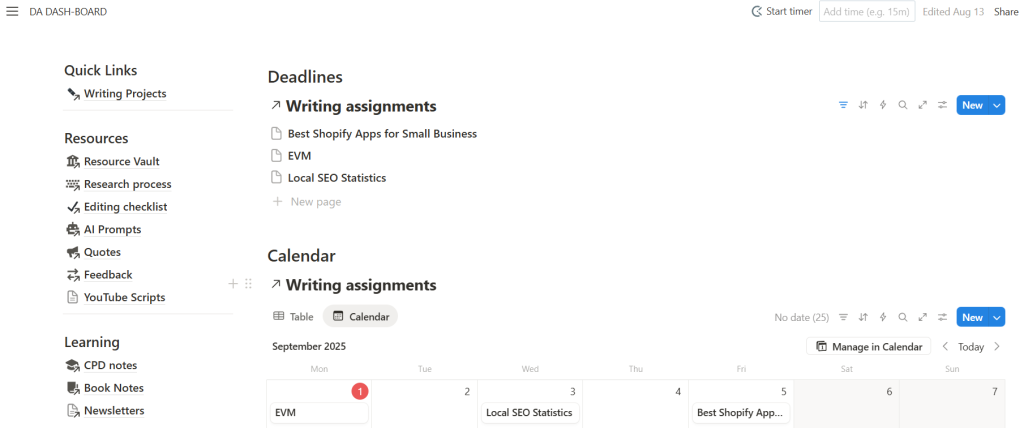
Now, I prefer to use dedicated tools for these things, while Notion is primarily my knowledge management system. I’ve been using it to keep notes, checklists, resources, client feedback, and AI prompts, to name a few.
Notion pricing
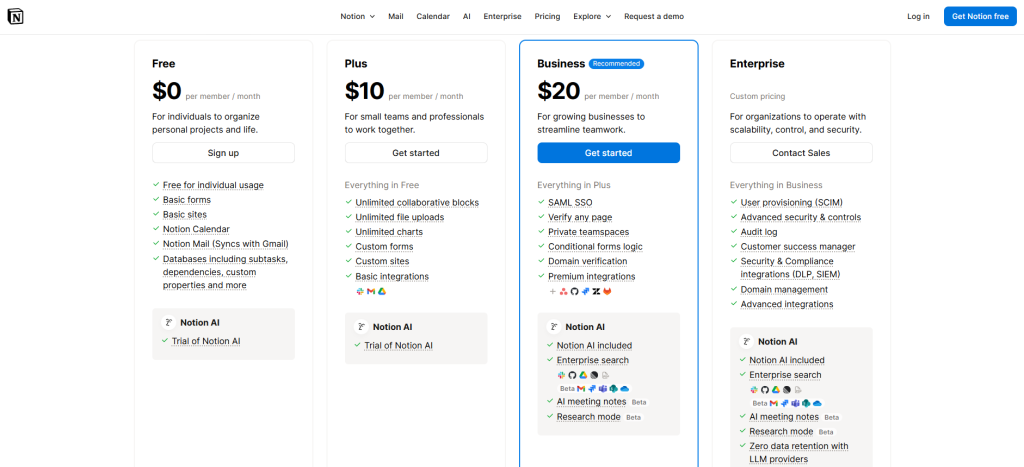
I’m on the Free Notion plan:
- Free: Unlimited pages & blocks, up to 10 guests, 5 MB upload limit.
- Plus: $10/user/month (annual) — unlimited uploads, 30-day version history, 100 guests.
- Business: $20/user/month (annual) — advanced permissions, 90-day version history, admin tools.
- Enterprise: Custom pricing with security, audit logs, and unlimited version history.
15. HubSpot
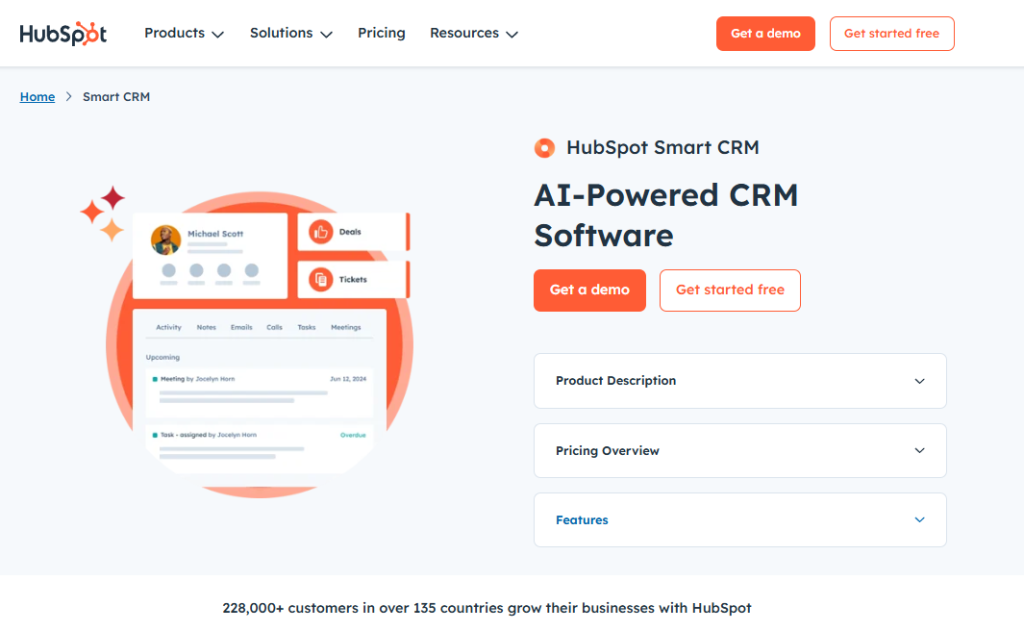
HubSpot is a customer relationship management (CRM) platform that helps keep client and contact details organized.
It also has a full suite of marketing and sales tools, but I don’t use these for client work or managing my business.
Top HubSpot CRM features
- Contact management: Store details about clients, prospects, and subject-matter experts in one place.
- Lead tracking: Monitor opportunities or projects as they move through different stages.
- Email/message logging & templates: Keep records of past communication and use simple email templates for outreach.
- Tasks & reminders: Set follow-ups, so no client conversation slips through the cracks.
- Integrations: Connect with Gmail, Outlook, and LinkedIn (via a 3rd-party browser extension) to automatically capture communication.
How I use HubSpot as a freelance writer and editor
I rely on HubSpot CRM to track my client relationships and SMEs I collaborate with.
It keeps me from forgetting who I’ve spoken to and when, which is essential when researching potential clients and running outreach campaigns.
Having all communication history tied to a contact means I can jump into any conversation with full context.
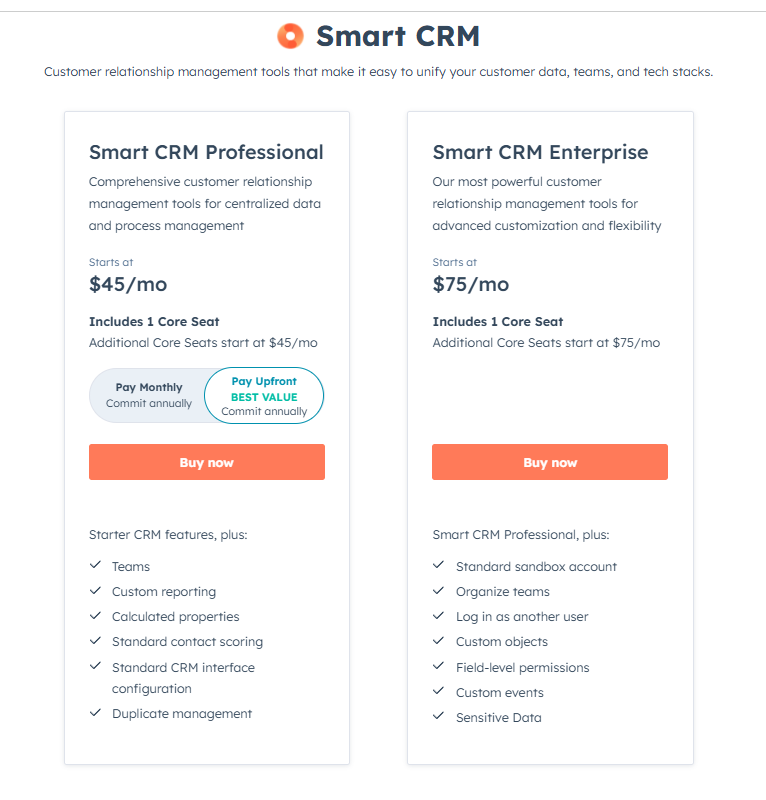
HubSpot CRM pricing
- Free: Core CRM with contact management, deals, tasks, and limited email templates (up to 1,000 entries)
- Starter Customer Platform: $9/month/seat
16. Buffer
Buffer is a social media scheduling tool designed for individuals and small teams.
You can use it to plan and queue posts across 11 platforms, including LinkedIn, X/Twitter and Instagram, without having to log in to each platform every day.
Top Buffer features
- Post scheduling: Queue posts for multiple platforms and set custom posting times.
- Multi-account management: Connect several profiles and manage them from one dashboard.
- Analytics: Track likes, shares, and clicks to see which posts perform best.
- Content re-queueing: Reshare evergreen content or duplicate high-performing posts.
- Collaboration (paid plans): Invite clients or teammates to review and approve posts.
How I use Buffer as a freelance writer and editor
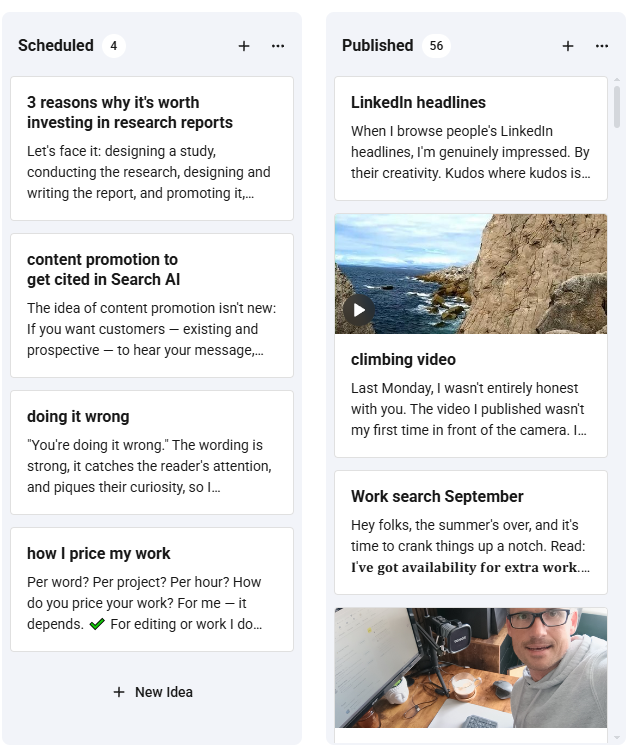
I use Buffer to batch schedule my LinkedIn posts for the week.
It helps me stay consistent on social while keeping my time focused on writing.
Buffer pricing
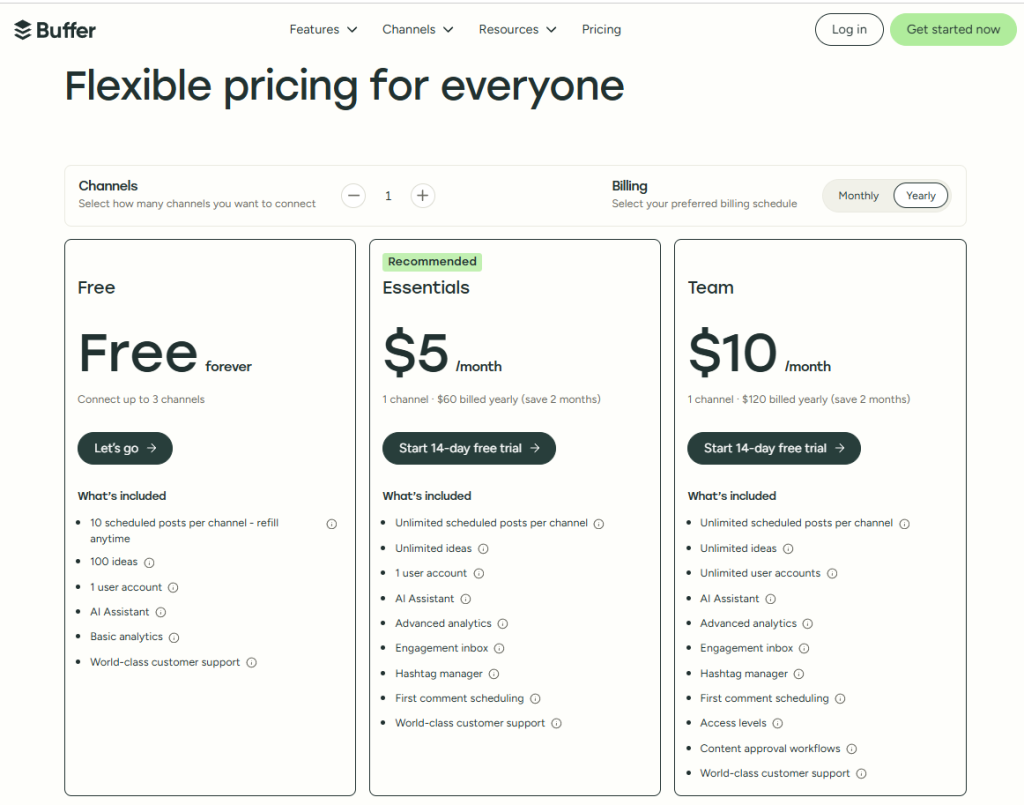
Buffer has 4 different pricing plans:
- Free: 3 channels, 10 posts per channel.
- Essentials: $6/channel/month — unlimited posts, 1 user, analytics.
- Team: $12/channel/month — collaboration and client approvals.
- Agency: ~$120/month for 10 channels, then $6 per additional channel.
At the moment, the free plan is enough for me, but as I’m experimenting with different social media (YouTube, TikTok, Instagram), I may need to upgrade at some point.
17. Sembly AI
Sembly AI is a meeting assistant that transcribes, summarizes, and analyzes meetings or voice recordings. Instead of scrambling to type everything, you get an accurate transcript and summary delivered automatically.
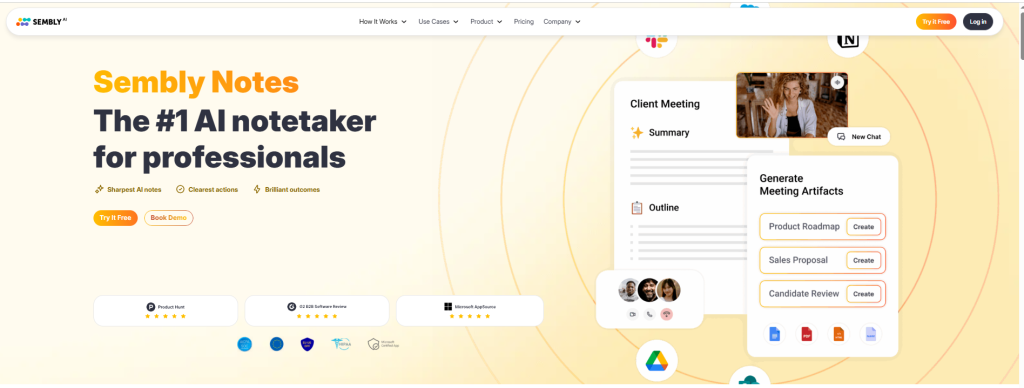
Top Sembly AI features
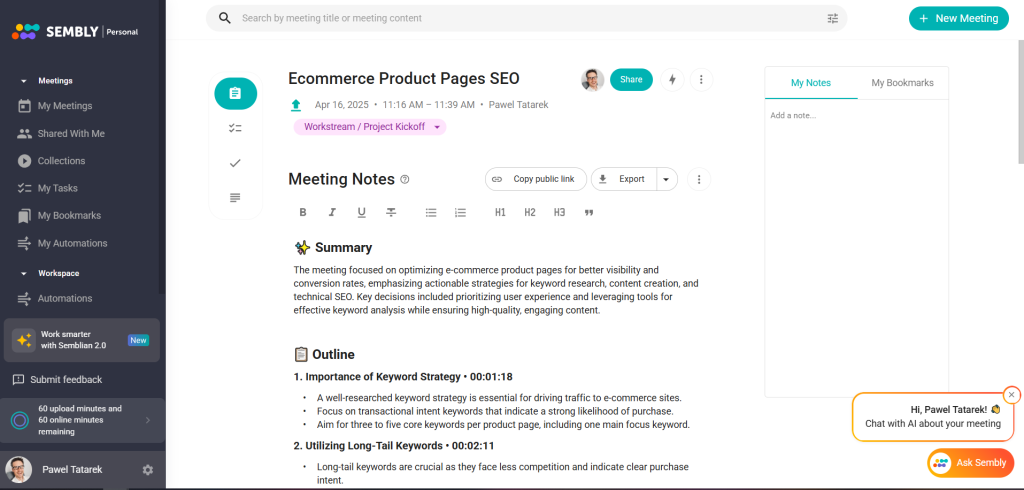
- Automatic transcription: Record or upload audio and get a transcript with speaker separation.
- AI summaries: Generate concise meeting minutes with key points, decisions, and action items.
- Ask Your Semblian™: Query the AI directly for specific details from a meeting transcript.
- Topic detection: Automatically flags important items like risks, issues, and requirements.
- Collaboration & search: Store transcripts in a searchable workspace and share summaries with clients or teammates.
How I use Sembly AI as a freelance writer and editor
I use Sembly AI to transcribe SME interviews, client briefing calls, podcasts, and videos.
It saves me hours compared to manual transcription. Having searchable transcripts means I can pull quotes quickly, which makes writing case studies and articles faster.
Sembly AI pricing
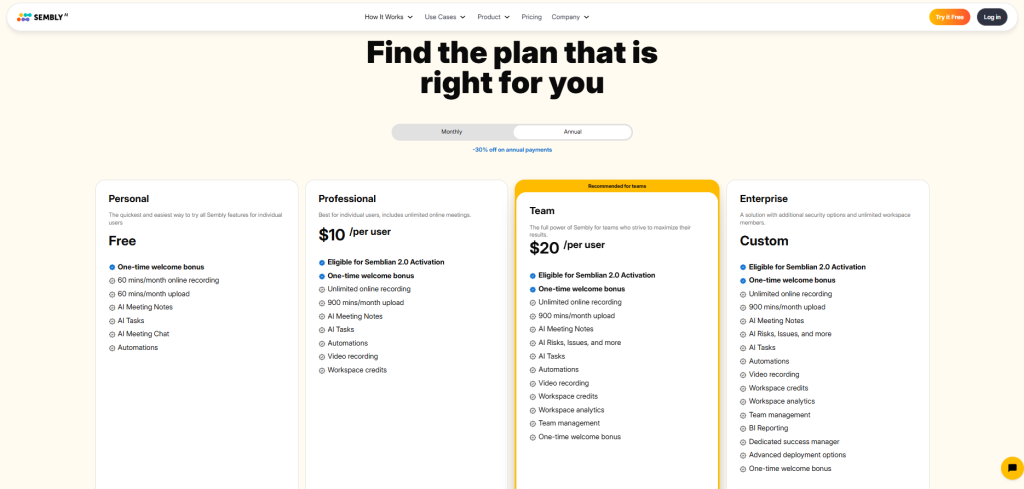
- Free: About 1 hour of audio/month with basic AI features.
- Professional: $15/month ($10/month billed annually) — 5 hours upload, unlimited meeting length, full features.
- Team: $20/user/month (annual) — 10 hours upload per user, team workspace up to 40 members.
- Enterprise: Custom pricing with unlimited usage and integrations.
18. Calendly
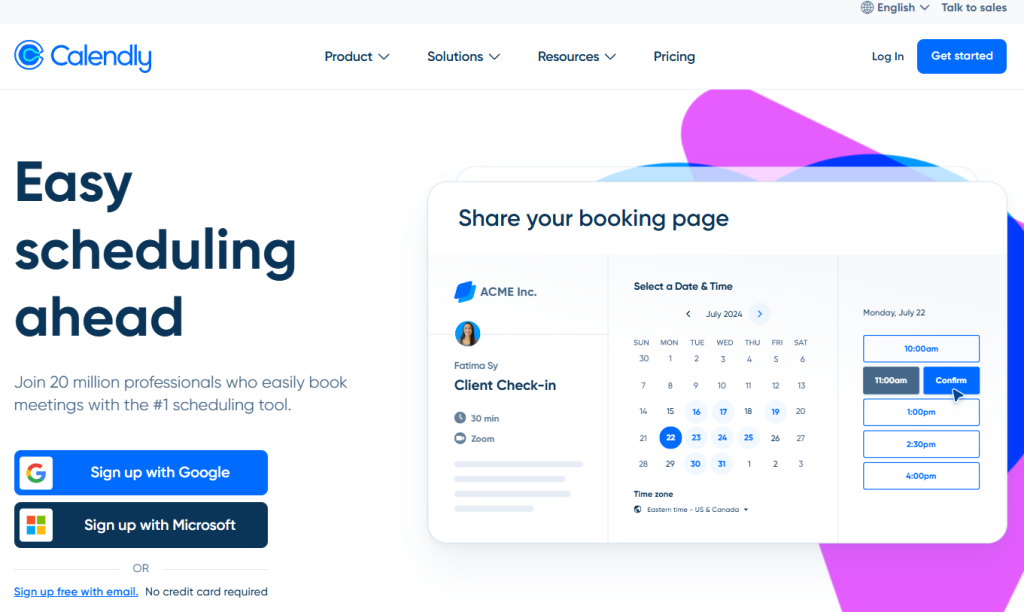
Calendly is an appointment scheduling tool that eliminates the back-and-forth of finding meeting times. It integrates with your calendar, handles time zones automatically, and makes it easy for clients or collaborators to book meetings.
Top Calendly features
- Custom booking links: Create event types (like 15‑minute interview or 30‑minute call) with rules for duration, buffers, and availability.
- Calendar integration: Syncs with Google, Outlook, and iCloud to avoid double-booking.
- Time zone intelligence: Displays availability in the viewer’s local time.
- Buffers & limits: Add padding before or after meetings and set caps on how many can be booked per day.
- Reminders & follow-ups: Sends automatic reminders and lets you collect info during booking.
How I use Calendly as a freelance writer and editor
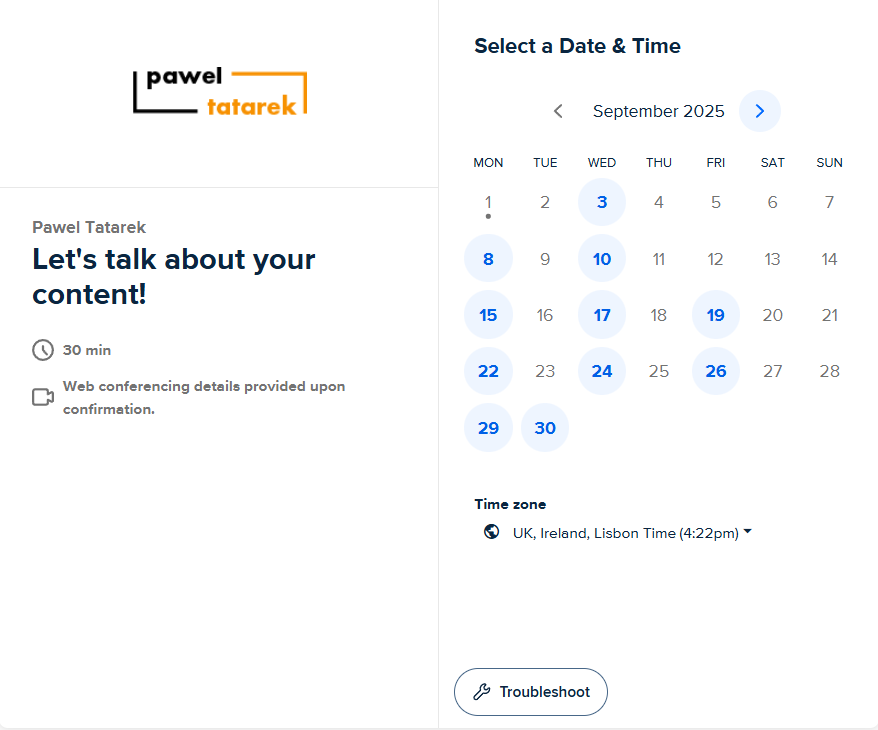
I use Calendly to schedule interviews, client calls, and virtual coffees without endless email exchanges.
Sending a simple link lets people pick a slot that works for them, and it shows up automatically in my calendar.
The time zone feature is a lifesaver when I’m talking with people based all over the place.
Calendly pricing
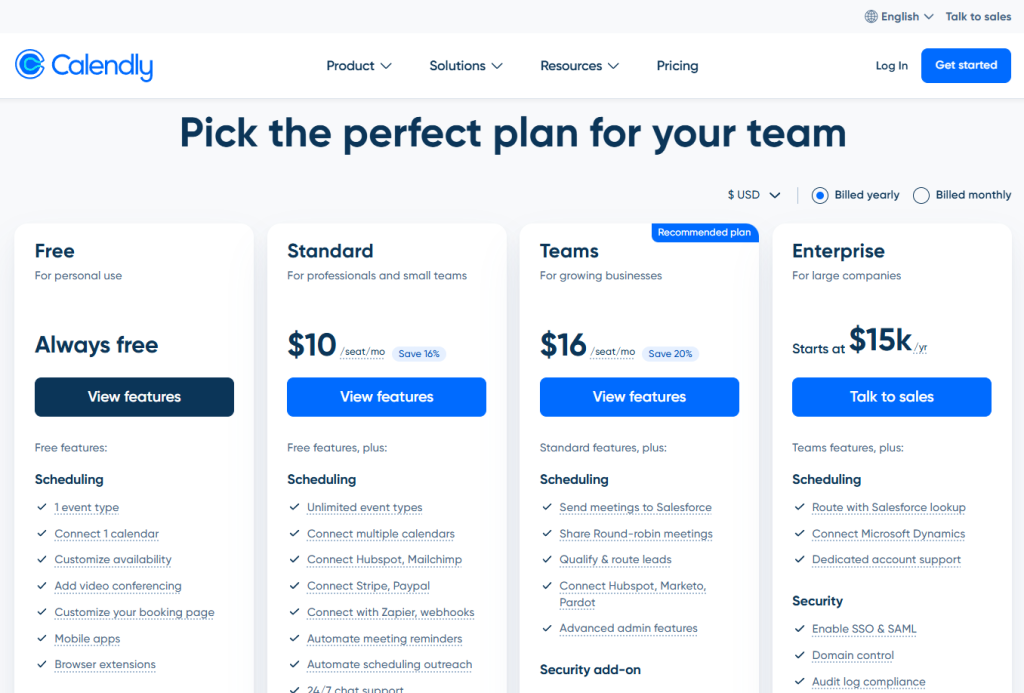
I’m on the free Calendly plan. which includes one active event type, unlimited bookings, and calendar integration.
There are also paid plans:
- Standard: $10/user/month (annual) — unlimited event types, two calendars, custom notifications.
- Teams: $16/user/month (annual) — routing forms, round‑robin, analytics.
- Enterprise: Custom pricing (around $15k/year) — advanced security and admin controls.
19. QuickFile
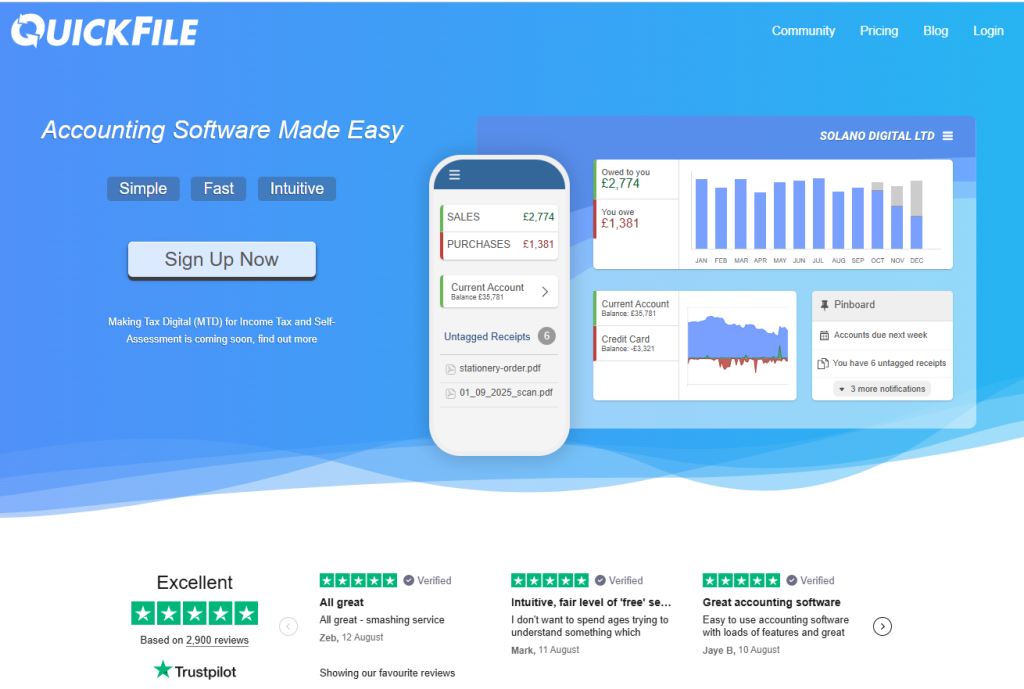
QuickFile is a UK-based online accounting and invoicing tool designed for freelancers, contractors, and small businesses.
It simplifies bookkeeping, invoicing, and tax prep without requiring accounting expertise.
Top QuickFile features
- Invoicing: Create branded invoices, set recurring ones, and accept online payments via PayPal or Stripe.
- Expense & receipt management: Upload receipts, auto-extract data, and categorize expenses by project.
- Bank feeds: Connect to your bank via Open Banking to import and reconcile transactions.
- Financial reports: Generate profit & loss, balance sheets, and VAT returns, with direct filing to HMRC.
How I use QuickFile as a freelance writer and editor
I use QuickFile to issue invoices, track payments, and log expenses.
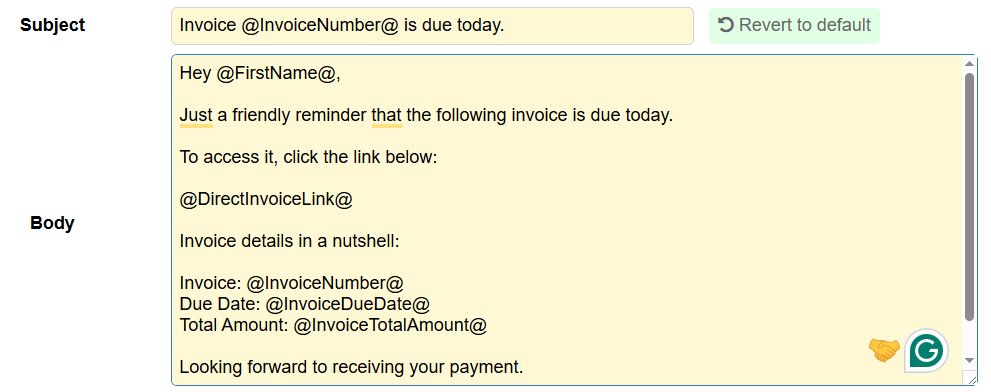
The automatic reminders take the pain out of chasing late invoices, and bank feeds make reconciliation quick.
And during tax season, having everything organized and HMRC-compliant saves me from stress and extra accountant fees.
QuickFile pricing
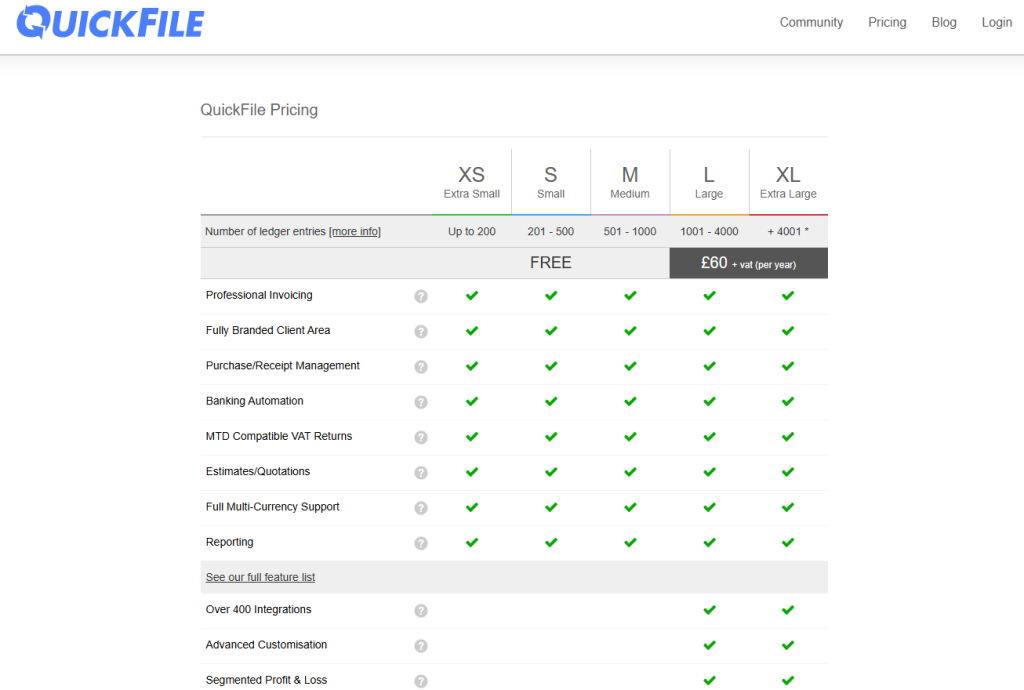
Quickfile is free for up to 1,000 ledger entries a year, which is plenty for a freelancer, and the plan includes all core features.
If you go over that, the Power User Subscription will set you back by £60 + VAT/year (about $75).
Writing and freelancing tools I don’t use anymore
These software tools used to be in my tech stack, but I don’t use them in my freelance work anymore:
- Evernote: The notetaking app is brilliant, but it’s also quite pricey. I’ve replaced it with the Notion/NotebookLM combo and haven’t looked back.
- ProWritingAid: another spelling and grammar checker I’ve used. However, I found it too bloated for my needs, and eventually I settled for Grammarly.
- Asana: It’s too complex for my needs as a freelancer, but a few clients are using it, so I still get to use it from time to time.
- Claude: While my writers find its output superior to ChatGPT, it hasn’t worked for me so well, and I cancelled the subscription after a few months of using it regularly.
- Scalenut: It’s an SEO optimization tool that I replaced with NeuronWriter because the UI was hard work and the keyword recommendations seemed random.
- Wordtune: It was one of the first AI-powered writing apps, and its output quality was unmatched when I first subscribed to it. Now, I can replicate it easily with ChatGPT.
Top tips for choosing the top tools for your freelance business
If you’re building your freelance toolkit, I’d start small.
Go through the list of tools above and pick one that solves your biggest frustration right now. Consider the tool I use, but also try out its alternatives.
Start with free tools, and if a free plan isn’t available, use free trials before you purchase the software. I always start with a monthly subscription to see if I actually use it enough to justify a yearly plan.
And whenever possible, I ask clients if they have access to a specific tool.
Once you tackle your main pain points, gradually add new tools.
But only if they actually help you streamline your writing process and run your business more efficiently,
Before I add a new app to my tech stack, I answer these 3 questions:
- Does it solve a genuine problem?
- Do I have other tools that can already do the job?
- Is it easy to integrate into my workflows?
If the answer to any is ‘No’, I give it a miss.
